When you’re building a PC, there are dozens of decisions you’ll need to make — the right processor, the best graphics card for your budget, how much memory you need, and even what case design appeals to you. But one question that often sneaks up on new builders is storage: should you go with an SSD (Solid State Drive) or stick with the tried-and-true HDD (Hard Disk Drive)?
At first glance, it might seem like a simple choice. SSDs are newer, faster, and heavily marketed. HDDs, on the other hand, have been around for decades and are known for offering lots of storage at lower prices. But the reality is more nuanced, especially when you’re investing in a machine that you want to last and perform reliably for years.
In this guide, we’ll dig deep into the differences between SSDs and HDDs, not only from a technical perspective but also in terms of real-world usability. We’ll look at speed, durability, capacity, cost, form factors, and common use cases. By the end, you’ll be able to confidently decide whether you should use an SSD, an HDD, or a combination of both for your PC build.
Before we dive into comparisons, it helps to understand what each type of drive actually is and how it works.
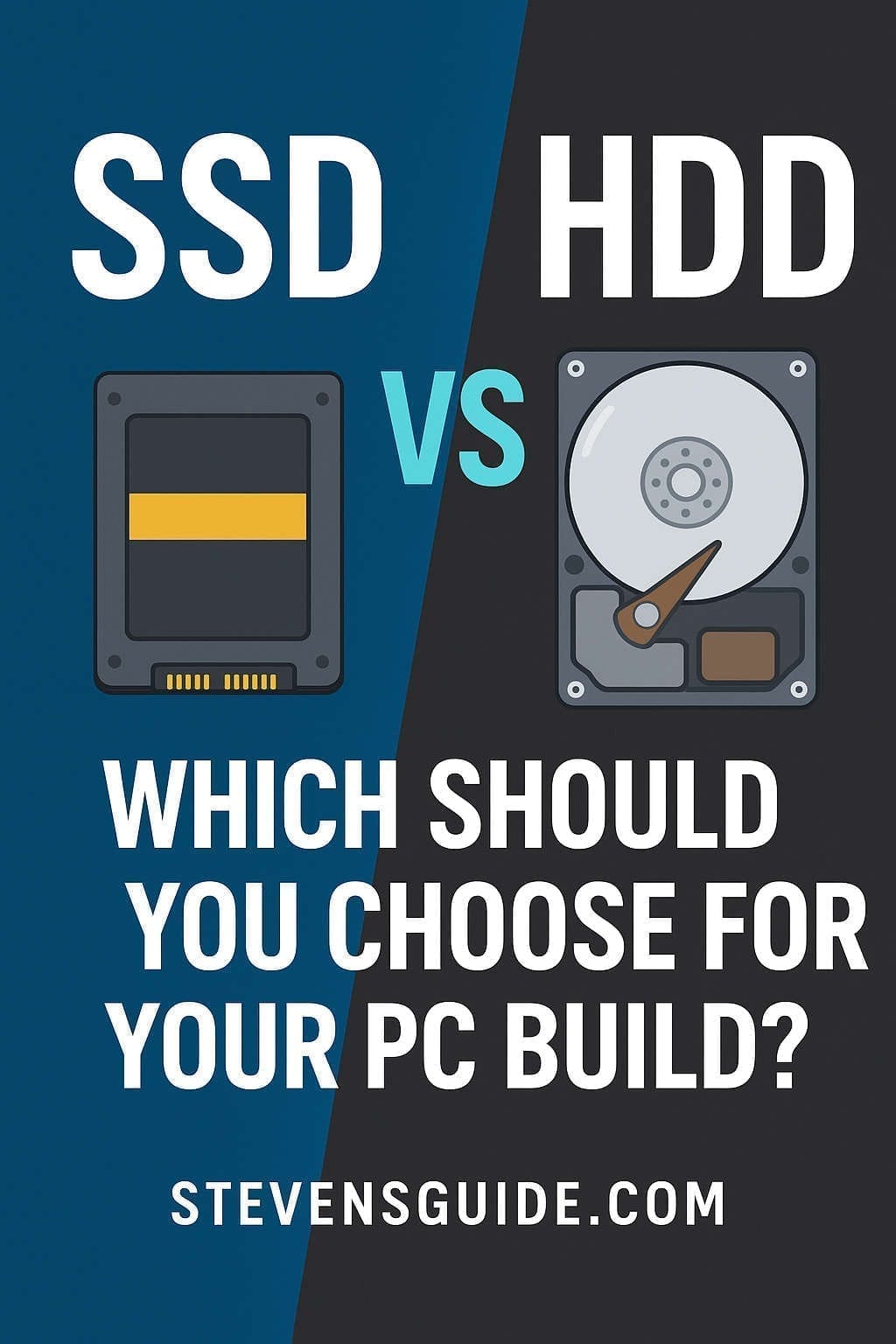
Hard Disk Drives (HDDs) rely on spinning magnetic platters to store data. A mechanical arm with a read/write head hovers over the spinning disks, moving back and forth to access or record information. In many ways, it’s a lot like a record player — but instead of sound, the platters store bits of data. Because of their mechanical nature, HDDs are limited by physical movement, which means slower performance compared to modern alternatives.
Solid State Drives (SSDs) are a completely different story. Instead of moving parts, SSDs use NAND flash memory chips to store information electronically. Data can be accessed almost instantly since there’s no mechanical head or spinning disk to wait for. The result is lightning-fast performance and a noticeable boost in responsiveness across virtually all tasks.
This core difference — mechanical vs electronic — explains most of the strengths and weaknesses of both technologies. HDDs excel at cost and capacity, while SSDs dominate when it comes to speed and efficiency.
Performance: The Speed You Can Actually Feel
The single biggest difference between SSDs and HDDs is performance.
When you install your operating system on a traditional HDD, booting into Windows or Linux can take anywhere from 30 seconds to over a minute depending on the system. Swap that HDD for even a modest SSD, and you’ll see your system boot in 10 seconds or less. That’s not just a benchmark difference — it’s something you’ll feel every single time you turn on your computer.
Application performance follows the same pattern. Programs launch almost instantly on SSDs, while they stutter and load noticeably slower on HDDs. Gamers, for example, will notice significantly faster level loading times when using SSDs, and video editors will find their timeline scrubbing much smoother. Even everyday tasks, like opening a web browser with multiple tabs or running background updates, feel lighter and more responsive when the storage is solid state.
File transfers are another area where SSDs shine. A good NVMe SSD can move data at speeds over 3,000 MB per second. In contrast, a high-performance HDD typically tops out around 200 MB per second. That means transferring a 20 GB 4K video project might take 10 seconds on an SSD versus nearly two minutes on an HDD. Over time, those differences add up to hours saved.
But perhaps the most overlooked advantage is in random read and write operations — the kind of small, scattered data access that your operating system performs constantly. Here, SSDs can be hundreds of times faster than HDDs, which translates to smoother multitasking and an overall “snappier” feel.
Storage Capacity and Price: Balancing Budget With Needs
Of course, speed isn’t everything. For many PC builders, cost and capacity are just as important.
HDDs win hands-down when it comes to price per gigabyte. It’s common to find 4 TB, 8 TB, or even 16 TB hard drives at prices that make an equivalent SSD laughably expensive. If you’re building a media server, need space for a huge library of 4K videos, or just want a massive archive of games without breaking the bank, HDDs are the obvious choice.
SSDs, on the other hand, are far more expensive per gigabyte, though prices have been dropping rapidly in recent years. A 1 TB NVMe SSD today might cost what a 256 GB SSD cost just a few years ago. Still, once you climb into the multi-terabyte range, the price difference between SSDs and HDDs becomes difficult to ignore.
The sweet spot for many builders is a hybrid approach: use a 500 GB to 1 TB SSD for your operating system and most-used applications, and pair it with a larger HDD for bulk storage. This way, you get the responsiveness of an SSD without sacrificing the affordability of HDD capacity.
Durability and Lifespan: Which Lasts Longer?
Another key consideration is reliability. Which one is more likely to keep your data safe in the long run?
HDDs, because they have moving parts, are more susceptible to physical damage. Dropping a desktop tower or bumping a laptop that uses an HDD can lead to a dreaded “head crash” where the read/write arm physically damages the disk platter. They also suffer from gradual wear — motors, bearings, and other components can eventually fail.
SSDs, being solid-state, don’t have moving parts. This makes them far more resistant to shocks and vibrations, which is one reason they’ve become standard in modern laptops. However, SSDs have their own limitation: NAND flash memory can only endure a certain number of write cycles. Manufacturers rate drives using TBW (Terabytes Written) or DWPD (Drive Writes Per Day). For example, a consumer SSD might be rated for 300 TBW, meaning it can handle 300 terabytes of writes before its cells start wearing out.
For the average user, this isn’t as scary as it sounds. Even if you wrote 50 GB of data to your SSD every single day, a 300 TBW drive would last over 16 years. In practice, most people replace their computers before the SSD wears out.
Noise, Power, and Heat
The differences don’t stop at speed and reliability. Practical considerations like power usage and noise can also matter depending on your build.
HDDs consume more power because of their motors and spinning platters, which can be an issue in laptops where battery life matters. They also generate noise: a faint whirring as the disks spin, and clicking sounds as the head moves. Some people find it nostalgic; others find it distracting.
SSDs, by contrast, are silent and much more power efficient. They also generate less heat, though high-performance NVMe drives can get warm under heavy load, which is why many motherboards now include heatsinks for them.
If you’re aiming for a quiet, energy-efficient build — like a living room PC, a recording studio setup, or a thin laptop — SSDs are the obvious winner.
Form Factors and Interfaces: Knowing What Fits
Another factor many first-time builders overlook is the physical design of drives and how they connect to your system.
Most people are familiar with 3.5-inch hard drives used in desktops and 2.5-inch drives often used in laptops. These connect via SATA cables, which are limited to about 600 MB per second in theoretical maximum speed. That’s why even a fast SATA SSD won’t come close to the performance of an NVMe SSD.
NVMe drives use the PCIe interface and are often built in the compact M.2 form factor, resembling a stick of gum. They slot directly into the motherboard without the need for cables and can achieve several gigabytes per second in transfer speeds. For high-end builds, especially gaming and content creation PCs, NVMe SSDs are the gold standard.
When choosing, it’s crucial to check your motherboard’s specifications. Some M.2 slots only support SATA-based SSDs, while others support NVMe. Using the wrong type can result in compatibility issues or dramatically reduced performance.
Matching Drives to Your Use Case
Not every user has the same needs, and that’s where the real decision comes in. Let’s look at some typical scenarios.
If you’re a general home user who primarily browses the web, does office work, and stores some photos and videos, an SSD in the 500 GB to 1 TB range is often all you need. It will make your everyday computing experience much more pleasant and responsive.
Gamers benefit significantly from SSDs. Modern titles often exceed 100 GB in size, and loading times on HDDs can be painfully slow. An NVMe SSD ensures smoother asset streaming and cuts down the waiting time between levels. However, if you maintain a huge library of games, pairing an SSD for your favorites with an HDD for the rest is the most practical solution.
For content creators, speed and capacity are equally important. Video editors working with 4K or 8K footage will see massive workflow improvements with NVMe SSDs, but those large raw files also need to live somewhere once the project is complete. A common setup is to use an SSD as a working drive and keep multiple terabytes of HDD storage for archiving.
Developers, too, will appreciate the faster compilation times and virtual machine performance that SSDs bring. Meanwhile, home server or NAS builders still tend to rely on HDDs for sheer storage capacity, often paired with RAID configurations for redundancy.
The Hybrid Approach: Why Many Builders Choose Both
One of the most effective strategies is not to choose at all but instead to combine both drive types.
Installing your operating system and core applications on an SSD ensures the machine feels fast and responsive. At the same time, adding a large HDD provides the affordable bulk storage you need for videos, backups, and other less speed-sensitive files. This hybrid setup is popular because it offers the best of both worlds: SSD speed where it matters and HDD capacity where cost matters.
Some motherboards and NAS systems even allow you to set up an SSD as a cache for an HDD, automatically storing frequently accessed files on the faster drive. This kind of tiered storage system can be particularly effective in balancing performance and cost.
Maintenance and Best Practices
Whichever drive type you choose, a few best practices will help you get the most out of it.
For SSDs, it’s important to enable TRIM, which allows the drive to manage unused data blocks more effectively. Most modern operating systems handle this automatically. It’s also a good idea to leave 10–20 percent of the SSD’s space free, which helps maintain performance and longevity.
With HDDs, defragmentation used to be essential for performance, though modern operating systems often handle it automatically. More importantly, you should be careful with physical handling, as HDDs are more fragile.
In both cases, the most critical step is maintaining backups. Drives of all types can fail, and having your data safely stored in multiple locations is the only real safeguard.
Common Mistakes to Avoid
Many builders run into the same pitfalls when choosing between SSDs and HDDs. A common mistake is underestimating how much storage you’ll need. Modern games and software can quickly fill up a 256 GB drive, leaving you scrambling for space. It’s usually wiser to aim for at least 500 GB or 1 TB for your main SSD.
Another mistake is assuming all SSDs are created equal. Budget SSDs that use QLC NAND may offer high capacity at a low price but struggle with endurance and sustained performance. For most users, TLC-based SSDs strike the best balance.
Finally, never make the mistake of thinking you don’t need backups just because you bought an SSD. While they may be more shock-resistant than HDDs, SSDs can and do fail. Protecting your data requires redundancy no matter what kind of drive you use.
So, Which One Should You Choose?
At the end of the day, the decision comes down to your budget, your needs, and your priorities.
If you want the fastest, most responsive experience and don’t mind paying more for less storage, an SSD should be your primary choice. For most users, a 1 TB NVMe SSD is the sweet spot today. If you need enormous amounts of space for a media library, backups, or archives, adding an HDD to the mix makes sense.
For gamers, content creators, and power users, the ideal setup is often a combination: a speedy SSD for the operating system and active workloads, paired with a larger HDD for mass storage. For casual users with lighter storage needs, an SSD alone may be all that’s necessary.
Final Thoughts
The debate of SSD vs HDD isn’t about one being strictly better than the other; it’s about using the right tool for the right job. SSDs have transformed the computing experience with their speed and efficiency, while HDDs remain unmatched for affordable high-capacity storage. By understanding the strengths and weaknesses of each, you can design a PC build that perfectly fits your personal needs.
When building your next system, don’t think of SSDs and HDDs as rivals. Think of them as teammates. Together, they can give you a machine that’s both fast and spacious, reliable and cost-effective. And that’s exactly what most builders are aiming for.