Restoring your iPhone or iPad from an iCloud backup can feel a bit nerve-wracking. One wrong step, and you might lose photos, videos, messages, or important documents. But here’s the good news: it doesn’t have to be that way. With a clear understanding of how iCloud backups work and the right approach, you can safely restore your data without losing anything important.
In this guide, we’ll break down the process of restoring iCloud backups without data loss. Whether you’re setting up a new iPhone, switching devices, or recovering from a software issue, this guide has you covered.
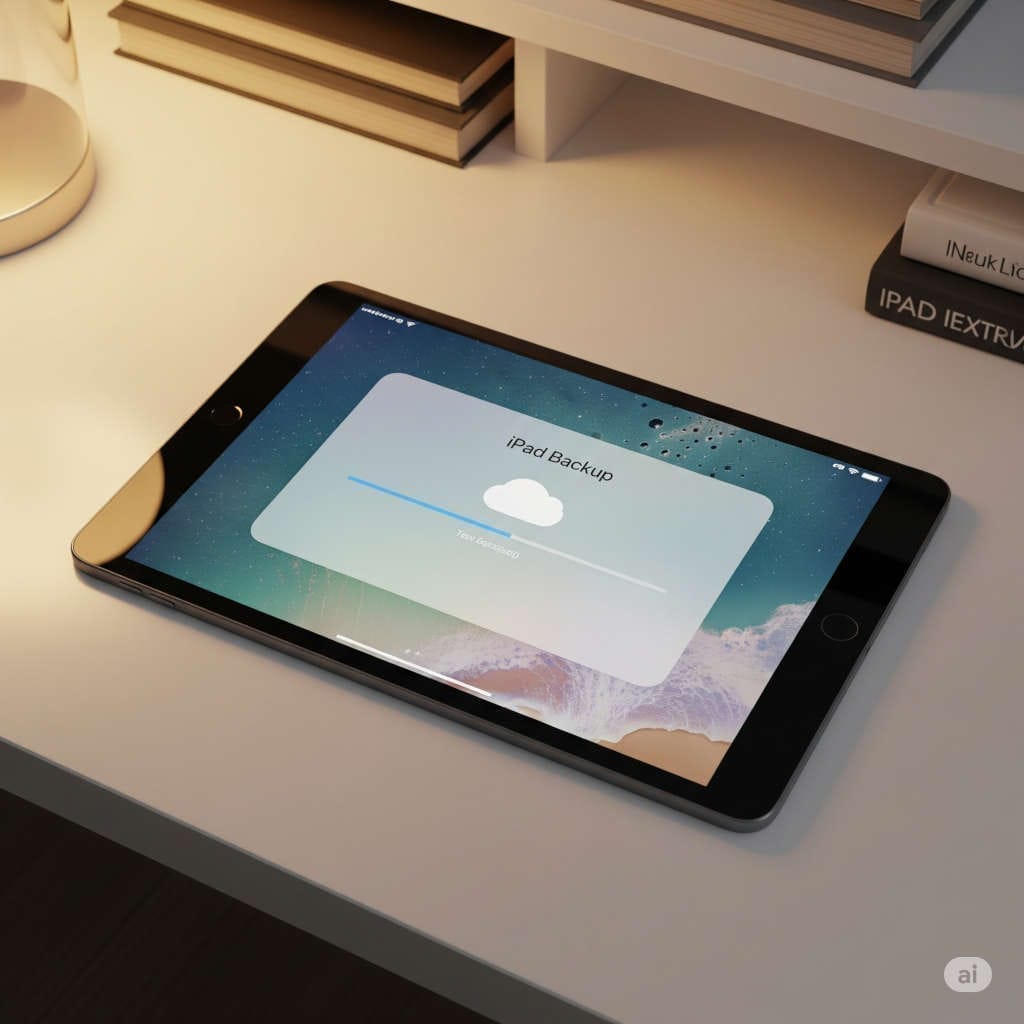
Let’s start with the basics. An iCloud backup is a snapshot of your iPhone, iPad, or iPod Touch, saved securely to Apple’s cloud servers. When enabled, your device automatically backs up daily while it’s connected to Wi-Fi, locked, and charging.
What Does iCloud Backup Include?
App data
Messages (iMessage, SMS, and MMS)
Device settings
Home screen layout
Photos and videos (if iCloud Photos is off)
Purchase history from the App Store
Ringtones
Visual voicemail password
What iCloud Backup Doesn’t Include:
Content already synced to iCloud (Photos, Contacts, Notes, Calendars)
Apple Mail data
Health data (unless encrypted backup is enabled)
Apple Pay information
Face ID and Touch ID settings
Knowing what gets backed up can help you decide how to restore your device without losing newer or unsynced data.
Common Misunderstanding: Does Restoring from iCloud Delete Everything?
Here’s the truth: Restoring an iCloud backup involves erasing your device first and then setting it up again with the selected backup. Naturally, this raises concerns about losing any data added after the backup was created.
But with a smart approach, you can preserve your recent data while still recovering older content from a backup. Let’s explore the different methods.
Method 1: Full iCloud Restore (After Manual Backup of New Data)
This method is best if you want a full reset and a clean slate, or you’re setting up a new device, and you want everything restored from your backup.
Step-by-Step Instructions:
1. Back Up Current Data First (Critical)
Before wiping your device, safeguard your recent data that wasn’t part of your previous iCloud backup:
Manually back up photos/videos to iCloud Drive, Google Drive, or your computer.
Export chats from apps like WhatsApp or Telegram.
Email or cloud-save important files or notes.
Use a third-party tool like iMazing or Dr.Fone to selectively extract and back up recent data.
2. Erase Your iPhone or iPad
Go to Settings > General > Transfer or Reset iPhone > Erase All Content and Settings. This will wipe the device and prepare it for the restore.
3. Restore From iCloud During Setup
After the device restarts, go through the setup steps.
On the “Apps & Data” screen, choose Restore from iCloud Backup.
Sign in to your Apple ID and select the desired backup.
4. Wait and Re-sync
Let your device finish restoring.
Then, manually add back any files or apps you backed up in Step 1.
Pros:
Everything returns to the backed-up state, including app layouts and settings.
Cons:
Time-consuming
Any unsaved or post-backup data will be lost if not backed up manually first
Method 2: Restore Specific Data from iCloud Without Erasing Your Device
What if you only need to retrieve a few contacts, files, or calendar entries? In this case, a full restore isn’t necessary.
Here’s How You Can Do It:
1. Log In to iCloud.com
Visit www.icloud.com on a computer or tablet browser and sign in with your Apple ID.
2. Access and Restore Specific Items
From the iCloud dashboard, you can view or recover:
Contacts
Calendars
Reminders
iCloud Drive Files
Notes
Bookmarks
3. Restore Older Versions (Advanced)
Go to Account Settings > Advanced > Restore Files/Contacts, and iCloud will show previous versions from the past 30 days.
4. Sync Back to iPhone
Ensure these services are turned ON in your iPhone’s iCloud settings so recovered data syncs back automatically.
Pros:
No need to erase your device
Safe and easy
Cons:
Only works for specific iCloud-synced data types
Method 3: Use a Third-Party Tool to Extract Data from iCloud Backup
If you want to selectively restore data from a backup without wiping your device, this is your best bet.
Recommended Tools:
iMazing
PhoneRescue
Dr.Fone by Wondershare
Tenorshare UltData
These tools let you log into iCloud, scan backups, and extract messages, call logs, photos, videos, app data, and more—all without a full restore.
How It Works:
Download and install the tool on your computer.
Sign into iCloud inside the software.
Select a backup to scan.
Preview and choose what data to restore.
Export to your computer or import back to your iPhone.
Pros:
No need to reset your device
Supports data preview
Saves time
Cons:
Some tools require payment
Needs a PC or Mac
Understanding iCloud Sync vs. iCloud Backup
Many users confuse iCloud sync and backup. They’re both important but serve different purposes.
iCloud Sync:
This keeps data (Photos, Contacts, Notes, Safari bookmarks, etc.) updated across devices in real time.
If you’re signed into iCloud and have sync enabled, your data is likely already safe and won’t need restoring.
How to Check:
Go to Settings > [your name] > iCloud, and see which toggles are on. If “Photos” or “Messages” are on, that content is syncing live.
iCloud Backup:
This is a full snapshot of your device and is used primarily for full device restores.
Special Case: Messages in iCloud
If you’ve enabled Messages in iCloud, your iMessages and SMS messages are synced across devices and stored in iCloud.
To Enable:
Go to Settings > [your name] > iCloud > Messages
Toggle it ON
This ensures your entire message history stays intact even after switching or restoring devices.
Tips to Restore Without Data Loss
Here are essential tips to help you restore data while minimizing any risk:
1. Always Back Up Current Data First
If you’re planning to restore from an older backup, save any recent content separately. Cloud services like Google Drive or Dropbox can be lifesavers here.
2. Enable iCloud Sync for Key Apps
Turn on sync for:
Photos
Contacts
Notes
Messages
Calendars
This way, you won’t need to rely solely on backups.
3. Use a Third-Party Tool to Merge Data
Tools like iMazing let you extract files from an old backup and merge them into your current device.
4. Avoid Interrupting the Restore Process
Once the restore begins, don’t reboot or disconnect your device from Wi-Fi.
5. Use iPhone-to-iPhone Transfer
If setting up a new phone, consider Apple’s direct transfer option. It copies everything (including Apple Pay and Face ID settings) with minimal risk.
FAQs About iCloud Restore Without Losing Data
Q1: Can I restore an iCloud backup without erasing my iPhone?
Not with Apple’s default options. You must erase your device to do a full restore. However, using iCloud.com or third-party apps lets you restore specific data types without erasing anything.
Q2: Will restoring a backup delete existing content on my iPhone?
Yes. When you restore from an iCloud backup, your device is first erased. Save any recent content first to avoid losing it.
Q3: Can I choose what to restore from iCloud?
Not directly through Apple’s tools. It’s all or nothing. For selective restoration, third-party tools are your best bet.
Q4: How do I find which iCloud backup is the most recent?
Go to Settings > [your name] > iCloud > Manage Account Storage > Backups. You’ll see a list of devices and the last backup date.
Q5: Can I combine data from two iCloud backups?
Apple doesn’t support merging backups. But using third-party software, you can extract data from both backups and manually merge them.
Final Thoughts: Play It Safe and Stay Synced
Restoring your device doesn’t have to mean losing important data. With some preparation, the right tools, and a good understanding of how iCloud works, you can bring your device back to life without sacrificing your recent files, messages, or memories.
Whether you’re switching phones, troubleshooting, or simply starting fresh, following these steps ensures you’re in control of what stays and what gets restored.
Pro Tip: Make it a habit to turn on iCloud sync for everything you care about. That way, you won’t need to rely on full restores unless absolutely necessary.
Need help with your specific situation? Leave a comment or reach out—we’re always happy to help fellow Apple users stay data-safe!