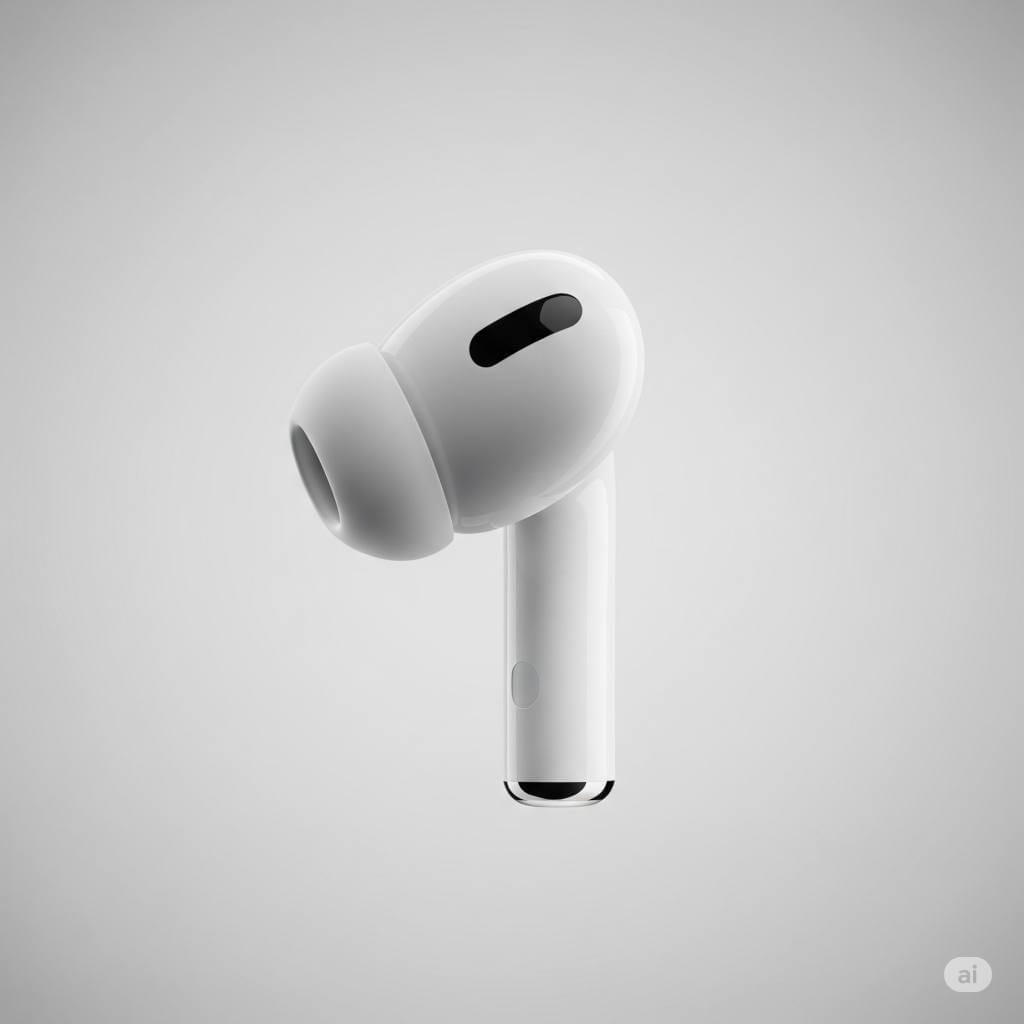
Has your left or right AirPod suddenly stopped working? You’re not alone. Thousands of users encounter this frustrating issue every day. Whether you’re trying to listen to music, make a call, or tune into a podcast, having only one working AirPod can ruin the experience. But don’t worry—this guide will walk you through every possible reason why this happens and show you step-by-step how to fix it.
By the end of this guide, you’ll not only have working AirPods again, but you’ll also learn how to prevent this issue in the future.
🤔 Why Is One AirPod Not Working?
There are several possible reasons why you’re only hearing sound from one AirPod. Here are the most common culprits:
1. Battery Drain
One AirPod might be completely out of battery. This often happens if you tend to use just one AirPod for phone calls or voice assistants.
2. Connection Glitch
Bluetooth connection issues are surprisingly common, especially if your device is connected to multiple Bluetooth accessories.
3. Audio Balance Settings
An accidental change in your iPhone or iPad’s accessibility settings could be directing audio to only one side.
4. Dirt or Earwax
Yep, it happens more often than you think. One clogged AirPod can make it seem like it’s not working at all.
5. Firmware or Software Bugs
Outdated firmware or iOS glitches can also cause weird behavior like one AirPod not producing sound.
6. Hardware Damage
If you’ve dropped your AirPods or they’ve been exposed to moisture, hardware damage could be the issue.
🚪 Quick Checks Before You Dive Into Fixes
Before we jump into the step-by-step troubleshooting, let’s rule out a few simple things:
- ✉️ Fully charge both AirPods: Place them in the charging case and charge them for at least 30 minutes.
- 📱 Try a different device: Connect your AirPods to another iPhone, iPad, or Mac.
- 🎧 Test with another audio app: The problem might be limited to a specific app.
- ⚖️ Check volume and balance settings: More on this below.
If all of those seem fine, let’s move on to the solutions.
🛠️ How to Fix One AirPod Not Working (Step-by-Step)
✉️ Step 1: Clean Your AirPods Thoroughly
What you’ll need:
- A soft, dry toothbrush or anti-static brush
- A microfiber cloth
- Cotton swabs
- 70% isopropyl alcohol (optional)
How to clean:
- Gently brush the speaker mesh to remove any earwax or debris.
- Wipe the surface with a microfiber cloth.
- Use a slightly dampened cotton swab (with alcohol) for stubborn buildup—but avoid getting liquid inside the speaker grille.
- Let them dry for 5-10 minutes before using.
⚡ Step 2: Check the Battery Levels
Sometimes one AirPod doesn’t charge properly, especially if it’s not seated correctly in the case.
To check battery levels:
- Open the AirPods case lid near your iPhone.
- Wait for the battery pop-up to appear.
- If one AirPod shows 0% or isn’t showing at all, it might not be charging.
What to do:
- Clean the charging contacts inside the case and on the AirPod stem.
- Reinsert and make sure the charging light comes on.
📱 Step 3: Toggle Bluetooth Off and On
This simple fix can reset your connection and solve the issue.
iPhone Steps:
- Go to Settings > Bluetooth.
- Toggle Bluetooth off, wait 10 seconds, and turn it back on.
- Reconnect your AirPods.
🔄 Step 4: Forget and Re-Pair Your AirPods
If the issue persists, unpair and then reconnect your AirPods.
Steps:
- Open Settings > Bluetooth.
- Tap the (i) next to your AirPods and select Forget This Device.
- Put both AirPods in the case and open the lid.
- Press and hold the button on the back until the LED flashes white.
- Reconnect via Bluetooth.
⚖ Step 5: Check Audio Balance Settings
This is often overlooked but super important.
To check:
- Go to Settings > Accessibility > Audio/Visual.
- Ensure the Balance slider is centered.
- Make sure Mono Audio is off.
🔧 Step 6: Reset Your AirPods
Resetting your AirPods restores them to factory settings.
Steps:
- Put both AirPods in the case.
- Close the lid and wait 30 seconds.
- Open the lid and press the setup button on the back for 15 seconds until the LED flashes amber, then white.
- Re-pair your AirPods.
🔄 Step 7: Update iOS and AirPods Firmware
You can’t manually update AirPods firmware, but you can trigger it by:
- Connecting your AirPods to an iPhone with Wi-Fi.
- Placing them in the case while plugged into power.
- Leaving them near your phone overnight.
To check firmware version:
- Go to Settings > Bluetooth.
- Tap the (i) icon next to your AirPods.
- Scroll down to Version.
Also, make sure your iPhone is running the latest iOS version.
⚠️ Step 8: Try a Different Audio Source
Sometimes the issue is not with your AirPods, but with the app or media you’re using.
- Try switching to Spotify, YouTube, or Apple Music.
- Play a different song or video.
- If both AirPods work here, the original app may be the issue.
🚗 Step 9: Use Apple’s Support Tools
If nothing else works:
- Visit support.apple.com
- Use the AirPods diagnostic tool
- Schedule a Genius Bar appointment if needed
If your AirPods are under warranty or AppleCare+, you may qualify for a free replacement.
📅 When to Contact Apple Support
You’ve tried everything, and one AirPod still isn’t working. It may be time to escalate the issue.
Signs it might be a hardware issue:
- One AirPod never charges or is undetected
- Persistent crackling or audio distortion
- Resetting doesn’t help
- Physical damage is visible
Check your warranty status:
- Go to checkcoverage.apple.com
Even if you’re out of warranty, Apple offers out-of-warranty replacement options:
- Individual AirPod replacement (usually $69 per unit for standard models)
- Charging case replacement
✅ How to Prevent This Issue in the Future
1. Clean Regularly
Once a week, wipe down your AirPods and case. Avoid letting earwax or grime build up.
2. Store Properly
Always keep your AirPods in their charging case when not in use. This not only keeps them clean but also ensures they stay charged.
3. Avoid Moisture
AirPods are water-resistant (not waterproof). Don’t wear them in the rain or during intense workouts unless you’re using the Pro models with sweat resistance.
4. Use Both AirPods Equally
If you use only one AirPod for calls, that one may wear out faster. Try switching sides regularly.
5. Update Regularly
Keep your devices updated with the latest software to avoid compatibility issues.
📆 Real-World Example: A User’s Quick Fix
Alex from Boston wrote to us saying:
“My left AirPod stopped working after a long day of Zoom calls. I thought it was broken. Turns out it wasn’t charging because of lint in the case. A quick clean and reset fixed everything.”
The takeaway? Sometimes the solution is simpler than you think.
📄 Summary: The Ultimate Checklist
| Problem | Fix |
|---|---|
| One AirPod not charging | Clean case, reseat AirPod |
| No sound from one side | Check balance settings |
| Volume low or distorted | Clean speaker mesh |
| Keeps disconnecting | Reset AirPods, toggle Bluetooth |
| Firmware issue | Update iOS and charge overnight |
| Still not working | Contact Apple Support |
🚀 Final Thoughts
Having one AirPod not working isn’t just annoying—it can feel like a complete tech failure. But the truth is, in most cases, the fix is simple and takes just a few minutes. Whether it’s a dirty charging contact, a software glitch, or just an overlooked setting, this guide is your go-to resource for troubleshooting.
Still stuck? Leave a comment below or contact Apple Support for more in-depth help.
Liked this guide? Bookmark it, share it with a friend, or save it for the next time your AirPods decide to act up.
You might also like,
- How to Find a Lost AirPods Case: Complete 2025 Guide
- Do AirPods Work with Android? Full Compatibility & Feature Guide (2025)
- Apple AirPods Pro 2 (2nd Generation) Wireless Earbuds Review: Are They Worth It?