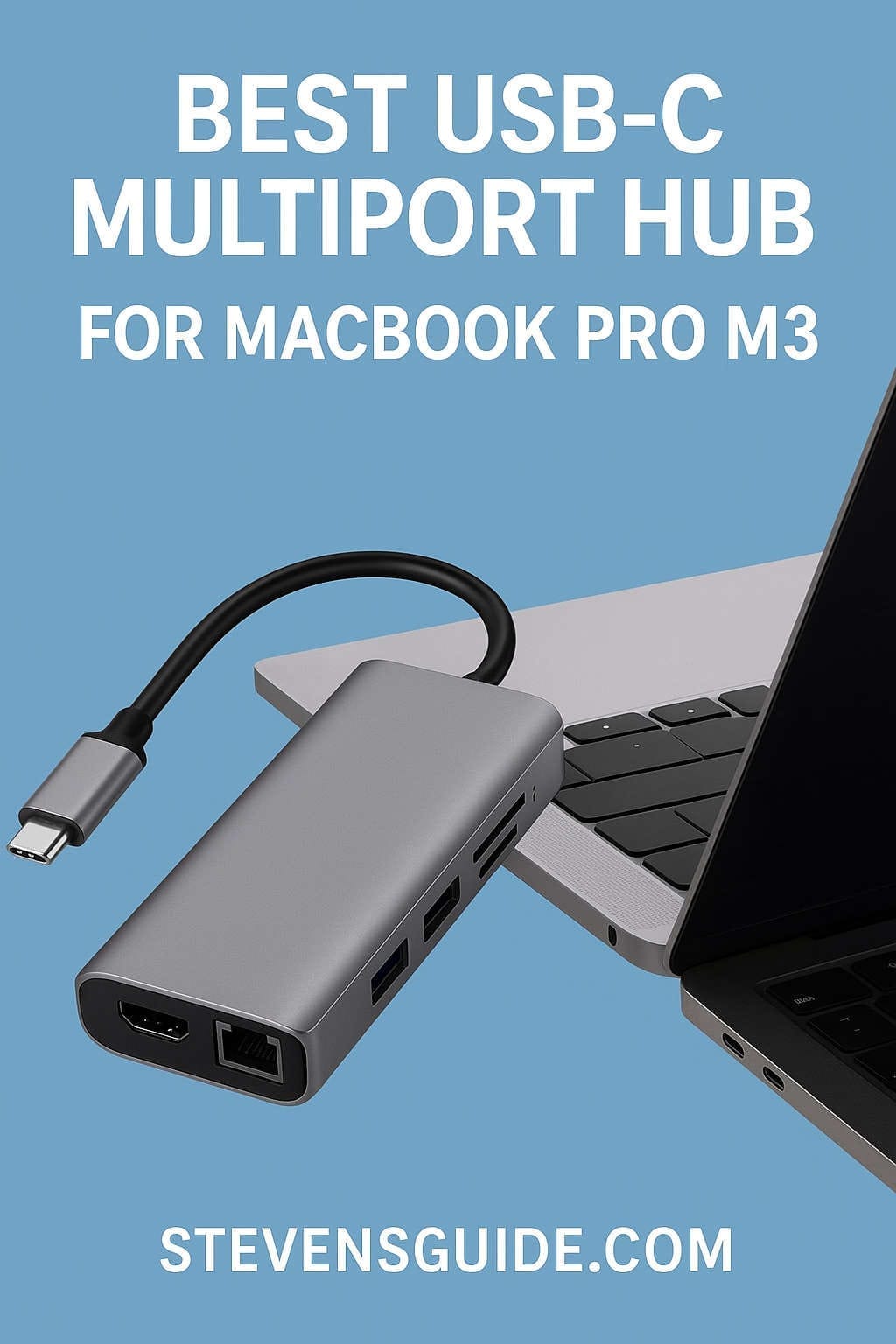
Apple’s MacBook Pro models featuring the M3 chip have quickly become favorites among students, creators, professionals, developers, and digital nomads. With incredible processing power, long battery life, powerful GPU options, and stunning displays, the M3 generation brings huge performance gains. But like every modern MacBook, it still comes with one tradeoff: limited port variety.
Whether you bought the 14-inch or the 16-inch M3 MacBook Pro, you’ll likely end up needing more ports—HDMI for displays, SD card slots for photography, Ethernet for stable internet, USB-A for traditional devices, and additional USB-C ports for accessories. This is exactly where a USB-C multiport hub becomes essential.
However, not all hubs are created equal. Some only provide basic expansion, while others support high-resolution external displays, fast file transfers, and high-wattage charging. Choosing the right hub ensures you unlock the full potential of your M3 MacBook Pro without bottlenecks, compatibility issues, or overheating.
This complete guide walks you through everything you need to know—what features matter for M3 performance, how to choose the right hub for your workflow, troubleshooting tips, and the top hubs worth buying today.
Why the MacBook Pro M3 Needs a USB-C Multiport Hub
Apple includes a fair set of ports in the new MacBook Pro lineup—Thunderbolt / USB-C ports, HDMI on some models, an SDXC slot, and MagSafe charging. While better than previous generations, it’s still not enough for most workflows.
A good USB-C hub can instantly expand your MacBook with:
Additional USB-A ports (3.0 or 3.2 Gen ports)
Gigabit Ethernet for fast and stable networking
SD and microSD card readers
HDMI or DisplayPort for external monitors
USB-C Power Delivery passthrough charging
Audio jacks or specialty ports depending on the model
And because the M3 MacBook Pro supports USB4 and Thunderbolt, the right hub or dock can tap into incredibly fast data speeds, multi-display support, and reliable power delivery.
What to Look for When Choosing a Hub for the MacBook Pro M3
Before diving into product recommendations, it’s important to understand which features matter most. Not every user needs a Thunderbolt dock, and not every traveler needs a large desktop hub.
Here are the key considerations:
1. Bandwidth and Port Type
There are two main categories:
Standard USB-C multiport hubs – Compact, portable, and usually enough for travel or light office work. But they share a single USB-C bandwidth lane, which can limit performance when many devices are connected.
Thunderbolt 3/4 docks – More expensive but offer far higher bandwidth, faster peripherals, and better multi-monitor support. Ideal for professionals who need a desktop workstation.
If you regularly connect high-speed SSDs, multiple monitors, or many peripherals, a Thunderbolt dock is worth the investment.
2. Power Delivery (PD) Passthrough
For charging your MacBook while using the hub, look for:
60W PD – Minimum acceptable for light use.
85W–100W PD – Recommended for 14-inch MacBook Pro.
100W+ PD – Best for 16-inch MacBook Pro users who push heavy workloads.
Keep in mind: hubs consume some power internally, so a “100W hub” may deliver only around 85–90W to the laptop.
3. External Display Support
Your display setup determines the type of hub you need:
Single 4K 60Hz monitor – Most USB-C hubs support this.
Dual 4K monitors – Requires a more advanced USB-C hub with DisplayLink or a Thunderbolt dock.
High-resolution displays (5K, 6K, 8K) – Supported best through Thunderbolt or specialized HDMI hubs.
Creative professionals—editors, designers, animators—should prioritize reliable video output and higher refresh rates.
4. Port Variety
Depending on your workflow, look for:
USB-A 3.2 ports for external drives, mice, keyboards.
SD card reader for cameras and drone footage.
Ethernet port for uninterrupted internet.
Audio input/output if your peripherals require it.
Extra USB-C ports for daisy-chaining or charging devices.
Make sure the hub’s physical layout is convenient. Some hubs bunch ports too closely, making them difficult to use with thicker cables.
5. Build Quality and Heat Management
The M3 MacBook Pro can handle hours of heavy work, so your hub should too. Look for:
Aluminum casing for heat dissipation
Short, high-quality cables
Secure port integration
Cheap hubs often overheat, throttle performance, or become unstable under load.
The Best USB-C Multiport Hubs for MacBook Pro M3
Below is a carefully curated list of the best hubs and docks available today, categorized by use case—travel-friendly, budget picks, pro-level docks, and creative workstations.
Each description is fully rewritten and optimized for clarity.
The Anker 555 is one of the most reliable, versatile, and well-balanced USB-C hubs for MacBook Pro users who want an affordable but capable device. It blends portability with useful ports and strong build quality.
Key advantages:
Supports 4K 60Hz HDMI output
Offers SD and microSD card slots
Provides multiple USB-A ports for legacy devices
Includes Gigabit Ethernet for stable connections
Delivers high-wattage power passthrough up to around 100W
Compact and ideal for everyday carry
It’s an excellent choice for students, office workers, and digital nomads who use their MacBook in a variety of environments. The aluminum body helps prevent overheating, and the stable firmware ensures compatibility with the M3 chip.
Best for: Everyday users who want a dependable, travel-ready hub that checks all the boxes.
2. CalDigit TS4 (Best Desktop Thunderbolt Dock for Power Users)
The CalDigit TS4 is often regarded as the gold standard of Thunderbolt docks for Mac users. Though it has been on the market for some time, its performance, stability, and wide port selection make it a top-tier solution for M3 owners.
Top features include:
Multiple Thunderbolt and USB-C ports
USB-A ports with high-speed data support
Dedicated DisplayPort for external monitors
SD card reader with fast transfer speeds
Full-size Ethernet port
High-wattage charging suitable for 14″ and 16″ models
Excellent long-term reliability
This is a great choice if your MacBook stays attached to a desk most of the day. It essentially transforms your laptop into a full workstation with an array of pro-grade connections.
Best for: Photographers, filmmakers, designers, developers, and workstation-bound professionals.
Satechi products are widely loved for how perfectly they match Apple’s design language. Their aluminum finishes, slim profiles, and clean port layouts make them look like an extension of your MacBook.
Their latest multiport hubs offer features such as:
High-resolution HDMI output (up to 8K on specific models)
USB-A and USB-C data ports
Ethernet for fast internet
SD and microSD card readers
Sturdy cable and clean industrial aesthetics
These hubs are ideal for users who prioritize both functionality and appearance. They blend seamlessly into your workspace and feel instantly familiar.
Best for: Creatives who want performance without compromising style.
If you want to connect two external monitors on a budget, the Anker 553 offers one of the most straightforward solutions. It is designed for dual-HDMI setups, making it a great productivity tool for office workers and programmers.
What you get:
Dual HDMI ports for two external displays
Multiple USB-A ports
PD passthrough for charging
Support for most common display configurations
Good performance for everyday multitasking
Dual-display setups may require understanding macOS display limitations, but once configured, this hub performs reliably.
Best for: Productivity-focused users who want dual monitors without buying a full Thunderbolt dock.
Dual monitors and stable Ethernet can increase productivity:
Dual HDMI ports
Multiple USB ports for peripherals
Fast PD charging
Ethernet for reliable networking
Recommended: Anker 553, CalDigit TS3 Plus
For Everyday Office Use
A general-purpose hub is usually enough:
HDMI output
A few USB-A ports
SD card slot
Ethernet if needed
Recommended: Anker 555 or any modern Satechi hub
Tips for Getting the Best Performance from Your Hub
1. Use High-Quality USB-C Cables
Cheap cables often limit data rates or video performance. A certified USB4 or Thunderbolt cable ensures full compatibility.
2. Ensure Sufficient Power Delivery
If your hub doesn’t provide enough PD power:
Your MacBook may charge slowly
Performance may decrease during heavy workloads
Charging may stop under load
Always check the hub’s real PD output, not just the advertised input.
3. Keep the Hub Cool
All hubs generate heat, especially during:
4K/60Hz video output
Large file transfers
Multiple device connections
Aluminum hubs dissipate heat better. Avoid placing hubs under blankets, pillows, or directly under a running laptop.
4. Update Firmware When Possible
Brands like Anker and CalDigit often release firmware updates that improve:
Display stability
Charging consistency
macOS compatibility
Checking updates periodically can prevent issues.
5. Test All Ports After Purchase
Make sure to test:
HDMI output
SD readers
Ethernet speeds
USB-A data transfer
Charging performance
Doing this early lets you request a replacement if needed.
Troubleshooting Common Issues with USB-C Hubs on MacBook Pro M3
Even with a good hub, you may occasionally run into issues. Here’s how to troubleshoot the most common ones:
1. External Monitor Not Working
Try the following:
Check cable quality
Use the correct HDMI port
Verify display resolution compatibility
Restart the laptop with the hub connected
Try DisplayPort instead of HDMI if available
Some Macs require specific display settings to run dual monitors—especially with USB-C hubs.
2. Slow Charging or No Charging
Possible causes:
Low-wattage power adapter
Hub using power internally
Non-PD compatible cable
MacBook needs more power during heavy workloads
Always use a high-wattage power brick (96W+ for 16-inch MBP).
3. Ethernet Not Working
Fixes:
Check macOS Network settings
Try a different Ethernet cable
Restart your router
Unplug and reconnect the hub
Update macOS if the driver is outdated
4. USB Ports Disconnecting
Causes can include:
Overloaded hub
Too many high-speed peripherals
Overheating
Low-quality cable
Try reducing the load or switching ports.
Final Recommendations (Best Picks Overall)
If you’re still unsure which hub to buy, here are the best recommendations for most M3 MacBook Pro users:
Best Overall Portable Hub
Anker 555 USB-C Hub
A reliable, well-balanced unit suitable for 90% of users.
Best Professional Thunderbolt Dock
CalDigit TS3 Plus
Ideal for power users who need maximum performance.
Best MacBook-Matching Hub
Satechi 8K Multiport Adapter
Delivers a beautiful design with high-end capabilities.
Best Dual Monitor Hub
Anker 553 USB-C Hub
Perfect for productivity and coding setups.
Best Compact Travel Hub
Satechi On-The-Go Puck Hub
Lightweight and stylish for frequent travelers.
Final Thoughts
A USB-C multiport hub is one of the most important accessories you can buy for your MacBook Pro M3. It unlocks the flexibility and connectivity that Apple’s minimalistic design tends to limit. Whether you’re a student working across campus, a creative professional editing high-resolution video, or a remote worker juggling dual monitors and wired peripherals, the right hub can dramatically improve your workflow.
Focus on your needs—port selection, display support, PD wattage, bandwidth, portability—and choose a hub that complements your daily routine. Investing in a high-quality USB-C hub not only expands your MacBook’s capabilities but also ensures long-lasting reliability.