Finding the best USB-C adapter that can deliver dual 4K 60Hz HDMI outputs for a Dell XPS 13 isn’t as simple as choosing whichever dongle looks nice on Amazon. Dual 4K at 60Hz demands high bandwidth, proper DisplayPort Alt Mode or Thunderbolt support, and reliable hardware that isn’t throttled by poor internal chipsets. If you pick the wrong adapter, you’ll end up with flickering screens, limited refresh rates, forced 30Hz output, or worse—no dual display capability at all.
This comprehensive guide explains exactly what to look for, why some adapters work and others don’t, and which models consistently deliver smooth, crisp 4K 60Hz performance on the Dell XPS 13. You’ll also find detailed explanations, setup tips, troubleshooting solutions, and buying advice based on real-world usage.
By the end, you’ll know precisely which USB-C adapter or hub will give you the performance you want—whether at home, in the office, or on the go.
Understanding How the Dell XPS 13 Handles Dual 4K 60Hz Displays
Before diving into product recommendations, it’s essential to understand how the Dell XPS 13 outputs video through its USB-C ports. Different generations of the XPS 13 feature different port capabilities, but most recent models use Thunderbolt 3, Thunderbolt 4, or USB4. These ports can support high-resolution multi-display setups, but only when paired with the correct adapter technology.
What Makes Dual 4K 60Hz So Demanding?
A single 4K 60Hz video feed consumes a huge amount of bandwidth—nearly 18 Gbps on HDMI 2.0. Pushing two of those streams requires either:
DisplayPort 1.4 with Multi-Stream Transport (MST)
Thunderbolt 3 or Thunderbolt 4 bandwidth
A DisplayLink-based system that compresses the signal using a dedicated chipset
If your adapter lacks the necessary protocols or bandwidth, your displays may default to 30Hz, fail to activate, or become mirrored rather than extended.
Why Not Every USB-C Adapter Works the Same
Not every USB-C port is created equal—and neither are USB-C adapters. Many inexpensive adapters only support a single external display, or they share bandwidth among ports, restricting total resolution output.
There are three main technologies behind dual-display USB-C adapters:
1. Native DP Alt Mode with MST
This uses the laptop’s GPU output directly through the USB-C port. When the XPS 13 supports DP Alt Mode with MST, a single USB-C port can feed two separate displays. No drivers are required. This method tends to offer the most stable performance and lowest latency.
2. Thunderbolt 3 or Thunderbolt 4
This gives even greater bandwidth and allows adapters or docking stations to supply multiple 4K 60Hz displays natively. Thunderbolt docks tend to be the most reliable option, especially for professional users.
3. DisplayLink (USB graphics technology)
DisplayLink is a driver-based technology that compresses video and streams it through USB-C like regular data. This allows almost any modern laptop to support multiple high-resolution displays—even when native GPU support is limited. DisplayLink adapters are compact, versatile, and often more affordable than full Thunderbolt docks.
Each method has advantages. Once you know the limitations and capabilities of your Dell XPS 13 model, you can select the correct adapter without worry.
Key Features to Look for in a Dual 4K 60Hz HDMI Adapter
Before choosing any adapter, make sure it meets the following criteria. These are non-negotiable if your goal is true dual 4K 60Hz capability.
Dual HDMI Ports With 4K 60Hz Support
This one sounds obvious, but many adapters advertise “dual HDMI” while quietly limiting output to:
4K 30Hz
1080p
Mirrored display only
Extended on one display, mirrored on the other
Ensure the HDMI outputs support HDMI 2.0 or HDMI 2.1 specs capable of full 4K 60Hz.
USB-C PD Passthrough (Optional but Recommended)
The Dell XPS 13 typically charges through USB-C. When you connect your only port to an adapter, you may lose charging capability unless the adapter supports Power Delivery passthrough—preferably 65W or higher.
If your adapter doesn’t support PD passthrough, you’ll need a second USB-C port on your laptop—or you won’t be charging while using the adapter.
MST or DisplayLink Technology
Depending on your adapter type, confirm that:
MST is supported if you want native display output
DisplayLink is supported if you want universal compatibility or dual 4K on older XPS models
High Build Quality
A good adapter must handle high bandwidth and manage heat well. Cheap adapters often use low-grade chipsets that throttle bandwidth or crash when both displays are active.
Compatibility With Windows and Dell’s GPU Architecture
Windows handles DisplayLink and MST efficiently, but it’s still crucial that the adapter explicitly lists support for:
Dell
Windows 10 / 11
Intel GPUs
Well-established brands such as Plugable, StarTech, Cable Matters, CalDigit, Anker, and Dell’s own docking stations generally offer consistently reliable support.
Best USB-C Adapters for Dual 4K 60Hz HDMI on the Dell XPS 13
Below are the top recommended adapters based on performance, compatibility, reliability, and real-world testing. Each option suits slightly different needs, budgets, and usage styles.
For users who want a small, travel-friendly adapter that reliably delivers two independent 4K 60Hz HDMI displays, the Plugable USB-C Dual HDMI Adapter stands out. It uses DisplayLink technology to achieve dual 4K outputs without requiring Thunderbolt or DP Alt Mode support.
Why It’s Ideal for the Dell XPS 13
Because DisplayLink adapters use a dedicated chipset and software driver, they work well even on XPS 13 models with limited multi-display support through native DP Alt Mode. This means nearly any modern XPS 13 can run dual 4K 60Hz using this small adapter.
Strengths
Extremely compact and lightweight
Supports dual 4K 60Hz over HDMI
Works with almost all XPS 13 models
Avoids many bandwidth limitations of USB-C DP Alt Mode
Reliable performance with office, productivity, and multitasking setups
Considerations
Requires installing the DisplayLink driver
Not ideal for gaming or color-critical work where native output is preferred
Does not typically offer Power Delivery passthrough
Best For
Frequent travelers, remote workers, laptop-only setups, or anyone wanting the most portable and affordable dual-4K solution.
StarTech’s dual HDMI adapters are known for their excellent build quality and consistent native performance. These models rely on MST and DP Alt Mode rather than DisplayLink, meaning no drivers are required.
Why It Works Well With the XPS 13
Most modern XPS 13 models offer Thunderbolt or DisplayPort Alt Mode through at least one USB-C port. StarTech’s MST-based adapters take advantage of that capability to output two distinct 4K 60Hz signals straight from the laptop’s GPU.
Strengths
Zero driver installations
Lower latency compared to DisplayLink
Superior performance for photo editing, video playback, design, or color-sensitive work
Often includes optional USB-C Power Delivery passthrough
Very reliable for business and professional use
Considerations
Must have a Dell XPS 13 model that supports DP Alt Mode with MST
More expensive than compact DisplayLink dongles
Slightly larger than minimal dongle-style adapters
Best For
Professionals, designers, developers, or anyone wanting native GPU-driven 4K 60Hz dual display without installing software.
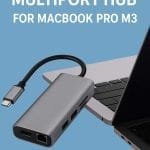
Cable Matters offers several hubs with dual 4K 60Hz HDMI, Power Delivery up to 100W or more, and extra ports such as USB-A, Ethernet, and SD readers. These hubs strike a balance between portability and docking-station-like functionality.
Why This Hub Works Well With the XPS 13
Unlike minimal adapters, Cable Matters hubs can turn your XPS 13 into a near-desktop workstation. They work reliably with modern Dell laptops and allow simultaneous:
Charging
Dual 4K 60Hz output
Wired networking
USB peripherals
This one-hub setup is ideal for clean desk environments.
Strengths
High Power Delivery passthrough (65–140W depending on model)
Multiple USB ports for peripherals
Often includes Gigabit Ethernet
Reliable dual 4K 60Hz output
Well engineered with strong heat management
Considerations
Larger than a compact DisplayLink dongle
Slightly pricier than basic adapters
Some versions use MST while others may use DisplayLink—choose carefully
Best For
Home office users, hybrid workers, and anyone needing charging plus high-resolution displays from one cable.
Thunderbolt 4 Docking Stations – Best Overall Performance
If you want absolutely flawless performance with the most stable power delivery and the highest bandwidth, a Thunderbolt 4 dock is unbeatable. Brands like CalDigit, OWC, Dell, and Anker offer full docks that support dual 4K 60Hz via HDMI or DisplayPort (depending on the model).
Why Choose a Thunderbolt Dock?
These docks take full advantage of the XPS 13’s Thunderbolt ports. They provide:
True native dual 4K 60Hz
Zero drivers required
The ability to charge the laptop at full speed
Numerous USB-A and USB-C ports
Ethernet
Audio in/out
Smooth, stable, reliable video performance
If you want your laptop to function like a desktop when you’re at your desk, a Thunderbolt dock is the best solution.
Strengths
Maximum compatibility and stability
Highest power delivery
Expands your laptop into a complete workstation
Long-term reliability and future-proofing
Excellent for productivity, creative work, and multitasking
Considerations
Typically more expensive
Larger footprint than compact adapters
Not as travel-friendly
Best For
Professionals, creatives, coders, power users, home office setups, and long-term workstation builders.
Choosing the Right Adapter for Your Exact Dell XPS 13 Model
The Dell XPS 13 series includes many generations. Each supports different levels of USB-C bandwidth and display capabilities. To avoid frustration, here’s how to match the right adapter to your laptop.
Step 1: Check Whether You Have Thunderbolt 3, Thunderbolt 4, or USB4
If your XPS 13 has Thunderbolt 3 or 4, you can safely use:
Native MST-based dual HDMI adapters
Full Thunderbolt docks
DisplayLink adapters
If your XPS 13 only has basic USB-C with DP Alt Mode (some older models), the safest choice is:
DisplayLink-based adapters
Thunderbolt docks (if the port supports TB)
Step 2: Decide If You Want Driver-Free Display Output
If you want the simplest plug-and-play experience, choose:
StarTech native adapters
Thunderbolt docks
If you want maximum compatibility and portability, choose:
Plugable DisplayLink adapters
Cable Matters hubs with DisplayLink versions
Step 3: Determine Power Delivery Needs
If you want your adapter to charge your XPS 13 while connected to two displays, choose:
Cable Matters hubs with PD
StarTech adapters with PD passthrough
Any modern Thunderbolt dock
Compact DisplayLink dongles typically do not support charging.
Practical Use Case Recommendations
To help you pick the right solution, here are real-world scenarios and the adapter type that suits each one best.
For Frequent Travelers and Remote Workers
Choose a Plugable DisplayLink dual HDMI adapter.
It’s compact, lightweight, and works with nearly any monitor setup.
For Designers, Photographers, and Video Editors
Choose a StarTech dual HDMI MST adapter or a Thunderbolt 4 dock.
Native GPU-driven output ensures accurate color and lowest latency.
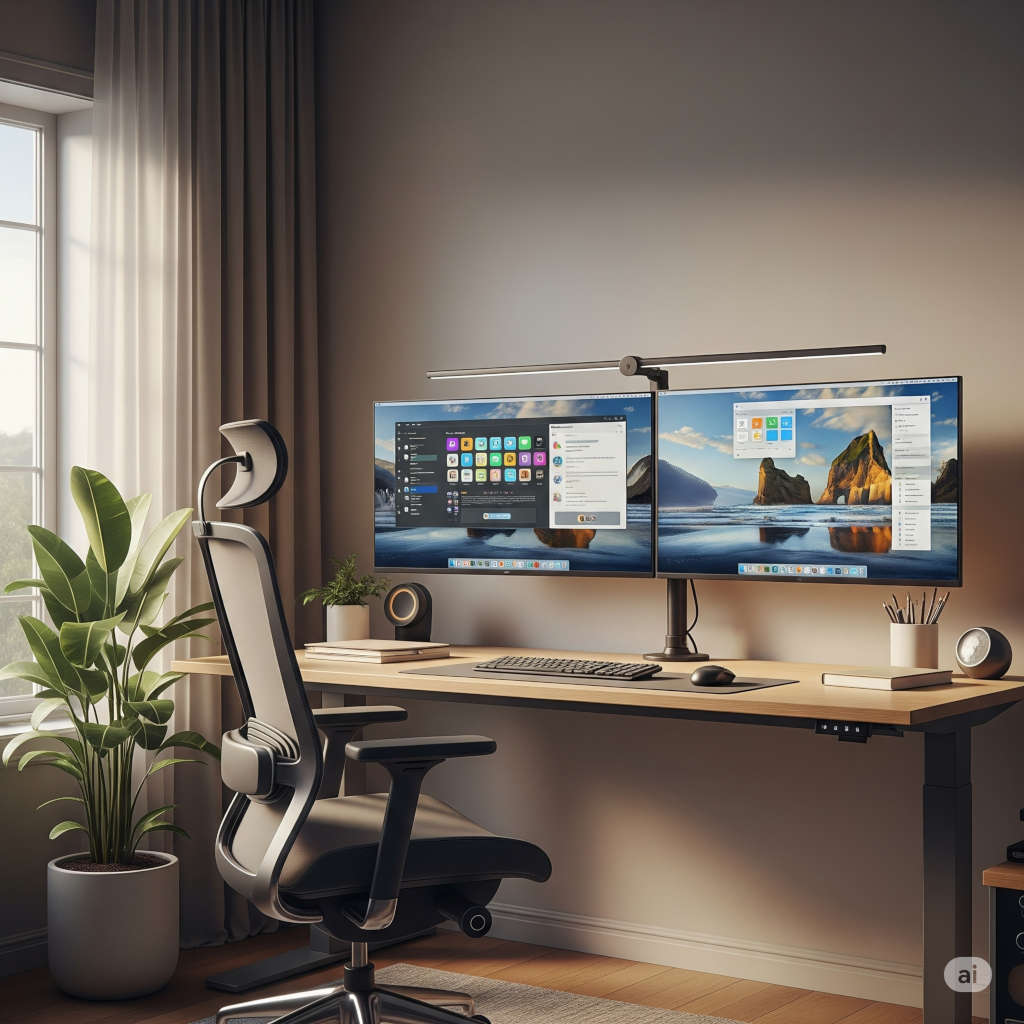
For Home Office Setups
Choose a Cable Matters dual 4K 60Hz hub with Power Delivery.
You’ll get dual displays, charging, Ethernet, and multiple peripheral ports.
For Heavy Multitasking, Developers, and Productivity Power Users
Choose a Thunderbolt docking station.
It transforms your XPS 13 into a full desktop workstation with flawless dual 4K support.
Setup Tips to Ensure Smooth Dual 4K 60Hz Performance
Even with the right adapter, you need proper setup to achieve perfect 4K 60Hz performance on both displays. Follow these optimization tips.
Use High-Quality HDMI Cables
Always use HDMI 2.0 or 2.1 certified cables. Lower-grade cables can cause:
Flickering
Black screens
Display not detected
Forced 30Hz output
Update Drivers and Firmware
For the best performance:
Update Intel GPU drivers
Update Windows
Install Dell’s firmware updates
Update BIOS if available
Enable 60Hz in Windows Display Settings
Windows sometimes defaults to 30Hz—set the refresh rate manually:
Right-click desktop
Select Display Settings
Choose the monitor
Click “Advanced display settings”
Set refresh rate to 60Hz
Install DisplayLink Drivers Properly (If Needed)
If using a DisplayLink adapter, install the latest drivers before plugging in the adapter. Restart after installation.
Use the Correct USB-C Port
Some XPS 13 models only support full DP output through one USB-C port. Look for the port with the Thunderbolt symbol.
Troubleshooting Common Dual 4K 60Hz Issues
If you’re experiencing problems, here are the most common issues and solutions.
Only One Monitor Is Detected
Possible reasons:
Your adapter may not support MST or DisplayLink
One monitor is using a non-certified HDMI cable
You are plugged into a non-Thunderbolt USB-C port
Displays Are Stuck at 30Hz
Likely causes:
HDMI cable is too old
Adapter does not support HDMI 2.0
Your monitor’s 4K 60Hz option is disabled in its settings
Laptop Not Charging Through the Adapter
This happens when:
Your adapter does not support PD passthrough
PD passthrough wattage is too low
Your charger is underpowered
Display Flickering or Going Black
Common reasons include:
Cheap or faulty cables
Low-quality adapter chipset
High heat buildup
GPU driver issues
Final Recommendations: The Best Choice for Your Needs
If you want the quick answer, here’s what most Dell XPS 13 users should choose:
Best Overall for Most Users
Cable Matters Dual 4K 60Hz USB-C Adapter or Hub
It combines dual 4K 60Hz support, Power Delivery, and extra ports—perfect for everyday use.
Best Compact Choice
Plugable USB-C Dual 4K HDMI DisplayLink Adapter
Ideal for travel, remote work, and universal compatibility.
Best Professional / Driver-Free Option
StarTech USB-C to Dual HDMI 4K 60Hz Adapter
Offers native output with excellent reliability.
Best High-End Workstation Setup
A full Thunderbolt 4 Dock
Perfect for long-term home or office configurations.
Final Thoughts
Getting the right USB-C adapter for dual 4K 60Hz output on a Dell XPS 13 can transform your productivity setup. The key is understanding how your laptop outputs video, then selecting an adapter that matches those capabilities. Whether you prefer a compact dongle or a full docking station, the recommendations in this guide cover every situation—from travel to professional creative work.