Working from home has become the new normal for millions of professionals around the world. Whether you’re attending Zoom meetings, editing spreadsheets, or running your own online business, having a comfortable, high-quality monitor can make a massive difference in your productivity and overall comfort.
But let’s be real—you don’t have to spend a fortune to get a great display. Thanks to advances in display technology and competitive pricing, there are now dozens of excellent monitors under $200 that offer great visuals, reliable performance, and features once reserved for premium models.
In this in-depth guide, we’ll explore the best budget monitors under $200 for home office setups in 2025. We’ll cover what to look for when buying a monitor, review top-rated models, and give practical tips on getting the most out of your new display.
Why a Good Monitor Matters for Your Home Office
When working from home, your monitor becomes your window to the world. It’s where you read, type, analyze, design, and communicate all day long. A high-quality display can:
- Reduce eye strain during long hours of work.
- Boost productivity with sharper text and more screen real estate.
- Improve posture when used with ergonomic setups.
- Enhance color accuracy for content creators, designers, and editors.
- Provide smoother multitasking for remote meetings, web browsing, and software use.
On the flip side, using a poor-quality monitor with low brightness, uneven colors, or limited ergonomics can quickly lead to fatigue, headaches, and frustration.
Luckily, modern budget monitors under $200 have come a long way. Many now feature IPS panels, adjustable stands, eye-care technologies, and sleek frameless designs that look great on any desk.
Key Factors to Consider Before Buying a Budget Monitor
Before jumping into specific models, it’s important to know what to look for when comparing affordable monitors. Not all budget screens are created equal — so understanding the specs will help you make the right choice.
1. Screen Size and Resolution
For home office work, 24 inches is the sweet spot. It’s large enough for multitasking but still compact enough for small desks.
A few 27-inch models under $200 exist, but at that size, Full HD (1920×1080) resolution can look slightly less sharp. If you’re mostly doing office work or general browsing, it’s perfectly fine.
Best options under $200:
- 23.8″ to 24″ at 1080p resolution
- 27″ only if you prefer a larger workspace over sharper text
2. Panel Type: IPS vs. VA vs. TN
- IPS (In-Plane Switching): Offers the best color accuracy and wide viewing angles. Great for general use and creative tasks.
- VA (Vertical Alignment): Delivers deeper blacks and higher contrast but narrower viewing angles. Ideal for darker rooms or watching videos.
- TN (Twisted Nematic): The cheapest type, with fast response times but poor color and limited angles — not recommended for office work.
For most users, IPS panels offer the best overall experience.
3. Refresh Rate
Most office users don’t need 144Hz or 165Hz refresh rates, but they do make scrolling and animations feel smoother. A 75Hz refresh rate is a nice bonus over standard 60Hz screens and often available under $200.
4. Connectivity
Make sure the monitor has HDMI ports, since most modern laptops and desktops use them. DisplayPort and VGA can be handy extras for versatility. Some monitors even offer USB ports or headphone jacks for added convenience.
5. Ergonomics
Ergonomics are often overlooked, but they’re crucial if you work long hours. Look for:
- Height adjustment
- Tilt, swivel, and pivot capabilities
- VESA mount compatibility for attaching monitor arms or wall mounts
6. Eye-Care Features
Monitors with flicker-free technology and low blue light modes help reduce eye strain, especially during late-night work sessions. Some brands like BenQ are particularly known for these features.
7. Design and Build Quality
A modern, slim-bezel design can make your workspace feel cleaner and more professional. Even in the budget range, you can find sleek monitors that look far more expensive than they are.
Top 5 Budget Monitors Under $200 for Home Office (2025)
After comparing dozens of models across major brands, here are the five best monitors under $200 that deliver the best mix of quality, performance, and comfort for your home office.
1. Acer Nitro XV240Y – Best Overall Budget Monitor
Price Range: Around $160–$190
Screen Size: 23.8″
Panel Type: IPS
Resolution: Full HD (1920×1080)
Refresh Rate: 165Hz
Ports: HDMI, DisplayPort
Features: AMD FreeSync, HDR10, Flicker-Free, Adjustable stand
Why It’s Great
The Acer Nitro XV240Y is easily one of the best monitors under $200 right now. Although technically marketed as a gaming monitor, its smooth performance and bright, color-accurate IPS panel make it perfect for productivity work as well.
Text looks crisp, colors are vibrant, and the high refresh rate gives you ultra-smooth scrolling through documents and web pages. It even supports HDR10 for slightly better contrast and color depth in compatible apps.
The stand is adjustable for tilt and height, making it more ergonomic than most budget models.
Pros
- Excellent IPS color reproduction
- Smooth 165Hz refresh rate
- Height-adjustable stand
- Eye-care technologies built-in
- Great value for price
Cons
- Basic speakers (not great for media)
- HDR support is limited in real use
Best For
Home office workers who also enjoy gaming or want a super-smooth, responsive display for general multitasking.
2. AOC 24G2 – Best for Ergonomics and Color Accuracy
Price Range: $170–$200
Screen Size: 24″
Panel Type: IPS
Resolution: 1080p Full HD
Refresh Rate: 144Hz
Ports: HDMI, DisplayPort, VGA
Features: Adjustable stand, FreeSync, Frameless design
Why It’s Great
The AOC 24G2 has been a fan favorite for years — and for good reason. It’s one of the few monitors under $200 with an ergonomic stand that supports height, tilt, swivel, and pivot adjustments. That alone makes it an amazing pick for anyone working long hours at a desk.
Its IPS panel offers impressive color accuracy, which is great if you occasionally edit photos or design graphics. The slim bezels also make it an ideal choice for dual-monitor setups.
Pros
- Excellent ergonomics for comfort
- Vivid, accurate colors out of the box
- Smooth 144Hz refresh rate
- Sturdy build quality
Cons
- Slightly bulkier stand design
- Some models run close to $200
Best For
Remote professionals and creators who need accurate colors, a flexible stand, and reliable everyday performance.
3. Dell SE2422HX – Best No-Frills Office Monitor
Price Range: $120–$150
Screen Size: 23.8″
Panel Type: VA
Resolution: 1080p Full HD
Refresh Rate: 75Hz
Ports: HDMI, VGA
Features: Flicker-Free, Anti-Glare Coating, Compact Design
Why It’s Great
If you just want a simple, reliable monitor for spreadsheets, video calls, and document editing, the Dell SE2422HX is hard to beat for the price. Dell’s VA panel offers deep contrast and crisp text, which is perfect for reading and writing.
It doesn’t have advanced features like height adjustment, but the overall design feels solid and professional. The anti-glare coating helps keep reflections under control, even in bright rooms.
Pros
- Affordable yet well-built
- Great contrast ratio
- Ideal for office documents and reading
- Energy-efficient design
Cons
- No height or swivel adjustment
- Slightly narrower viewing angles than IPS
Best For
Office users who prioritize simplicity, reliability, and affordability over flashy features.
4. BenQ GW2490 – Best for Eye Comfort and Minimalist Design
Price Range: $105–$170
Screen Size: 24″
Panel Type: IPS
Resolution: 1080p Full HD
Refresh Rate: 60–75Hz
Ports: HDMI, DisplayPort, VGA
Features: Flicker-Free, Low Blue Light, Cable Management System
Why It’s Great
BenQ’s GW2490 is one of the best monitors for long working hours. It’s built with eye-care technology that includes low blue light, flicker-free backlighting, and an ambient light sensor that automatically adjusts brightness.
The ultra-slim bezels make it look sleek and modern, while the built-in cable management system helps you maintain a clutter-free desk. While the stand isn’t height-adjustable, the monitor is VESA mount compatible.
Pros
- Excellent eye-care features for all-day comfort
- Crisp IPS display with wide viewing angles
- Stylish, minimalist design
- Great for small spaces
Cons
- No height adjustment
- Built-in speakers are weak
Best For
Remote workers and students who spend long hours reading or writing on screen and want a minimalist, eye-friendly monitor.
5. Samsung S24R350 (SR35) – Best for Style and Simplicity
Price Range: $130–$160
Screen Size: 24″
Panel Type: IPS
Resolution: 1080p Full HD
Refresh Rate: 75Hz
Ports: HDMI, VGA
Features: Sleek design, Eye Saver Mode, Flicker-Free
Why It’s Great
The Samsung S24R350 is one of the most stylish monitors you can buy under $200. Its three-sided bezel-less design makes it perfect for multi-monitor setups or modern minimalist desks.
The IPS panel ensures clear, consistent colors, while the Eye Saver Mode reduces blue light emissions for extended comfort. The build quality feels premium for the price, and setup is quick and straightforward.
Pros
- Clean, modern design
- Great picture quality for everyday tasks
- Compact and lightweight
- Eye Saver Mode helps with fatigue
Cons
- Basic stand (no height adjustment)
- Limited color accuracy for creative work
Best For
Users who value aesthetics and need a reliable, straightforward display for home office work, streaming, and casual use.
Bonus Mentions – Honorable Alternatives
If you’re lucky to catch them on sale, consider these honorable mentions:
- HP 24mh: Often dips below $200 and features an IPS panel, built-in speakers, and height adjustment.
- LG 24MP60G-B: A sleek, frameless design with 75Hz refresh and good color accuracy.
- ASUS ProArt Display PA248QV: Usually slightly above $200, but worth it for professional-level color calibration.
How to Optimize Your Home Office Monitor Setup
Buying a monitor is only half the equation. Setting it up properly will make a huge difference in how comfortable and efficient your workspace feels.
1. Adjust the Height and Angle
Your eyes should naturally rest at about one-third from the top of the screen. If your monitor isn’t height-adjustable, use a riser stand or a stack of sturdy books to elevate it.
2. Reduce Glare
Place your monitor perpendicular to windows to reduce glare and reflections. Anti-glare coatings help, but positioning is key.
3. Calibrate Brightness and Color
Out-of-the-box settings are often too bright. Aim for 100–150 cd/m² brightness (or simply reduce brightness until white backgrounds aren’t glaring). You can also use built-in “Reader” or “Eye Saver” modes for comfort.
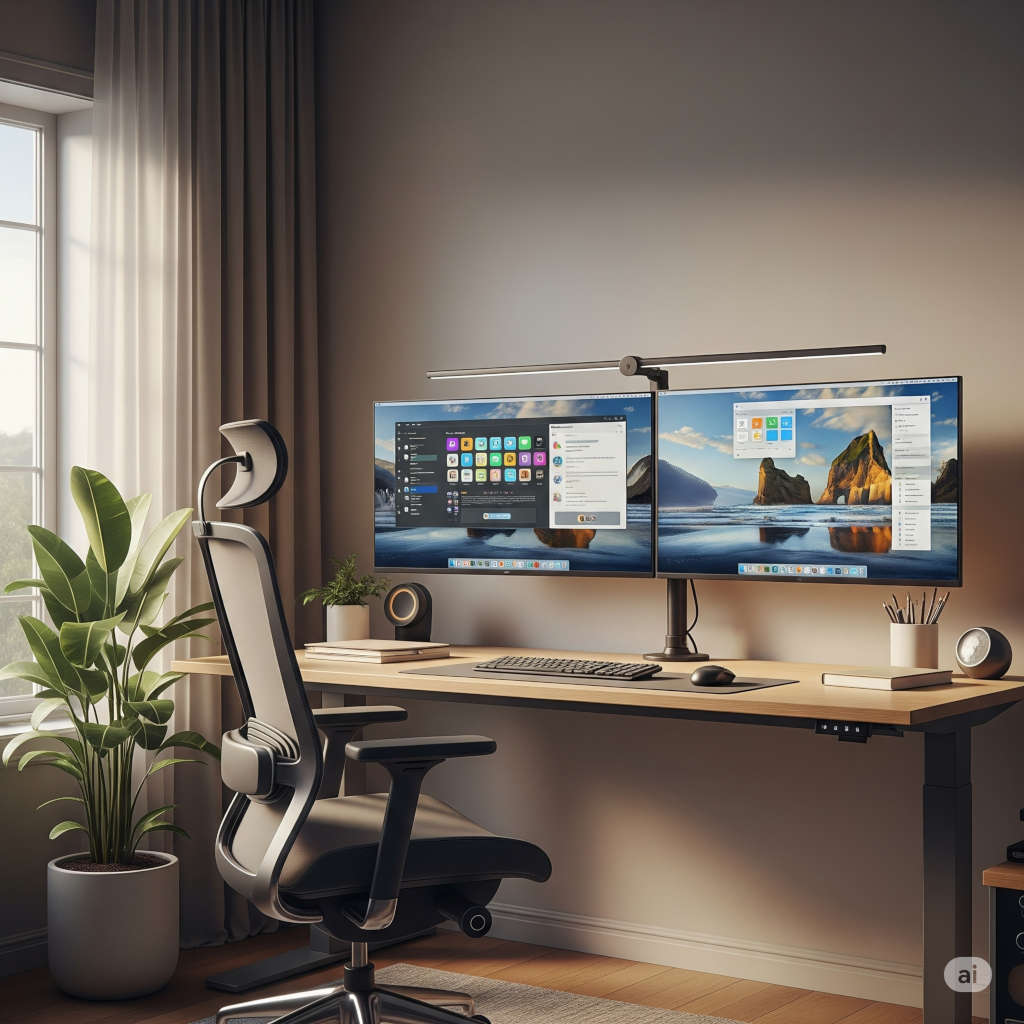
4. Use Dual Monitors Wisely
If you’re running two monitors, keep them at the same height and angle to avoid neck strain. Matching screen sizes and panel types (both IPS or both VA) ensures consistent color and brightness.
5. Enable Blue Light Filters
Most modern monitors include blue light filters or “night modes.” Use them in the evenings to reduce eye strain and improve sleep quality.
6. Keep a Clean Desk Setup
A clutter-free workspace boosts focus. Cable management channels, wireless keyboards, and minimalist stands can make your home office feel more professional and relaxing.
Tips to Get the Best Deals on Budget Monitors
- Watch seasonal sales: Back-to-school, Prime Day, and Black Friday are great times to find steep discounts.
- Check for refurbished units: Many brands like Dell and HP offer certified refurbished monitors with warranties at lower prices.
- Compare warranty coverage: Most brands offer at least a 1-year warranty, but some extend to 3 years.
- Read user reviews: Real-world feedback can reveal common issues like light bleed or dead pixels before you buy.
Common Mistakes to Avoid When Buying a Budget Monitor
- Ignoring ergonomics: A great screen means nothing if your neck and back hurt after a few hours.
- Overpaying for unnecessary refresh rates: If you’re not gaming, 60–75Hz is plenty.
- Skipping VESA mount compatibility: Even if you don’t use a monitor arm now, you might want one later.
- Forgetting about cable types: Make sure you have the right HDMI or DisplayPort cable before setup.
- Falling for marketing hype: “HDR-ready” or “gaming-certified” labels don’t always translate to real benefits at this price point.
Which Budget Monitor Is Right for You?
Here’s a quick summary based on your priorities:
| Need / Preference | Recommended Monitor |
|---|---|
| All-around performance | Acer Nitro XV240Y |
| Best ergonomics + color | AOC 24G2 |
| Simple and affordable | Dell SE2422HX |
| Eye-care and minimalist | BenQ GW2480 |
| Sleek design and build | Samsung S24R350 |
Final Thoughts: Affordable Doesn’t Mean Compromise
Finding a quality monitor under $200 used to mean sacrificing color, build, or comfort. Not anymore. In 2025, you can easily set up a comfortable, modern, and visually pleasing home office without overspending.
If you want the best overall value, the Acer Nitro XV240Y delivers the smoothest experience and feature set. For ergonomics and color accuracy, the AOC 24G2 is unbeatable in this price range. But even the more basic Dell SE2422HX or BenQ GW2480 can drastically improve your daily workflow.
Whichever you choose, make sure your monitor supports your work habits, posture, and space — because a comfortable workstation is the foundation of long-term productivity and wellness.
Your Next Step
If you’re setting up your home office or upgrading from a laptop screen, start by identifying your work habits and space needs:
- Do you multitask or use split-screen apps? Go for 24″ or larger.
- Do you work late at night? Prioritize eye-care features.
- Need more flexibility? Choose a monitor with VESA support for an adjustable arm.
From there, any of the monitors on this list will help you create a workspace that’s both comfortable and efficient — without crossing the $200 line.
✅ In summary:
- Focus on IPS panels for clarity and color.
- Look for ergonomics and eye-care features.
- Don’t underestimate build quality and stand adjustability.
- Check for HDMI and VESA compatibility before buying.
- Always compare prices during seasonal sales.
A great monitor is one of the smartest long-term investments you can make for your home office — and thankfully, in 2025, you don’t have to spend a fortune to get one.
You might also like,
- Top 10 Must-Have Office Equipment for Your Home Office Setup in 2025
- Top Home Office Essentials for 2025: Gear to Boost Productivity & Comfort
- The Best Office Desks for Home: Elevate Your Work-from-Home Experience
- Best Orthopedic Office Chairs 2025: Complete Home Office Guide & Reviews
- How to Create an Ergonomic Workstation at Home: Complete Setup Guide 2025