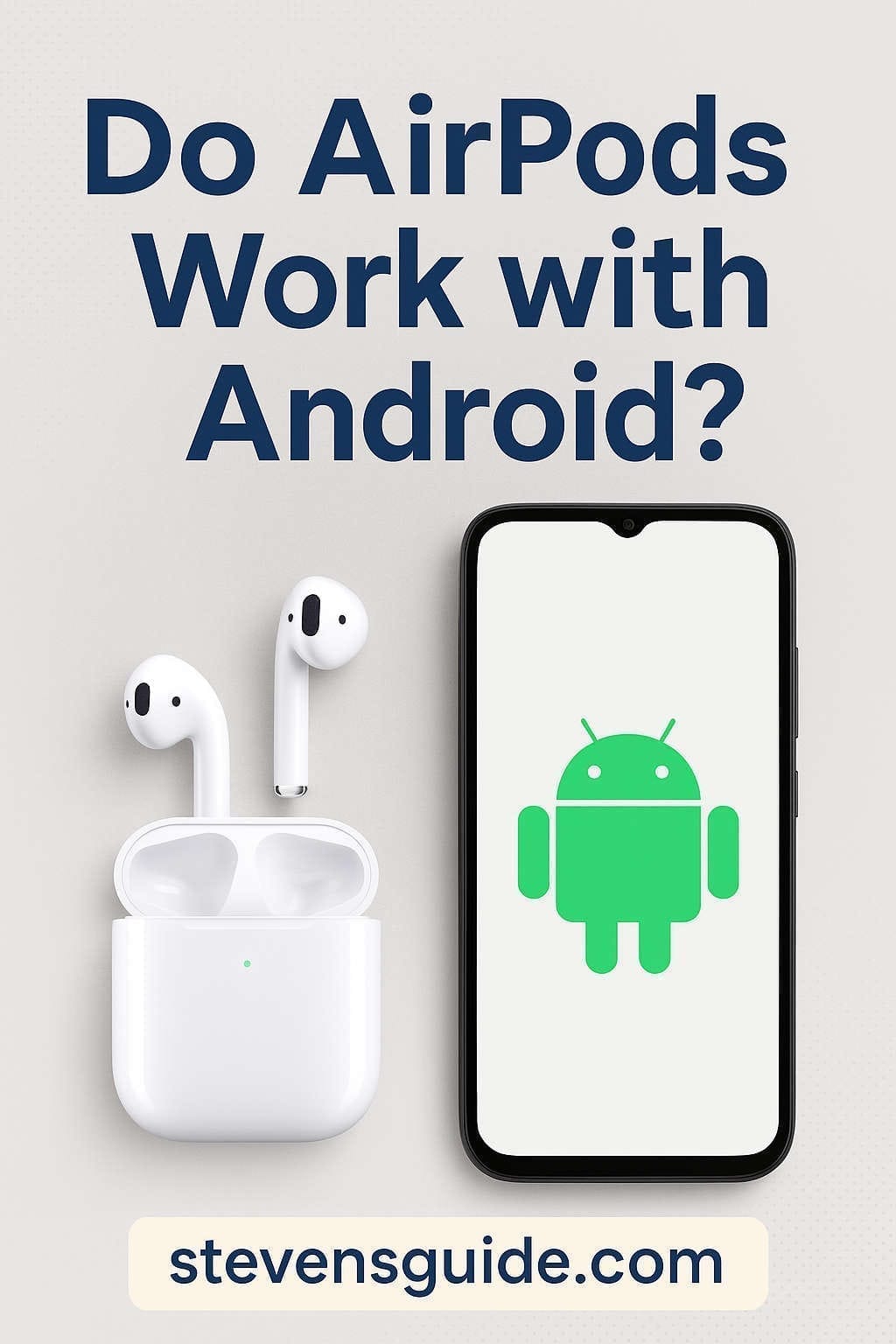
Apple’s AirPods are among the most popular wireless earbuds in the world, thanks to their sleek design, ease of use, and seamless integration with Apple devices. But what if you use an Android phone? You might be wondering: Do AirPods work with Android?
The short answer is yes, they do. However, there’s a lot more to know beyond simple compatibility. In this comprehensive, human-friendly guide, we’ll walk you through everything you need to know about using AirPods with Android phones, including:
- How to connect AirPods to an Android device
- What features you get (and what you miss)
- Pros and cons
- The best AirPods alternatives for Android users
- Tips, tricks, and troubleshooting
Whether you’re thinking about buying AirPods or already have a pair and want to use them with your Android device, this post has got you covered.
Can You Use AirPods with Android?
Yes, AirPods are compatible with Android devices. They connect via Bluetooth just like any other wireless earbuds. This includes:
- AirPods (1st, 2nd, and 3rd generation)
- AirPods Pro (1st and 2nd generation)
- AirPods Max
All these models can pair with Android phones and tablets without needing any extra accessories or hacks. However, some of the advanced features that make AirPods special on iPhones are not available on Android.
Think of it like this: you’ll get the core experience, but not the full luxury suite.
How to Connect AirPods to an Android Phone
Pairing AirPods with an Android device is easy. Here’s a step-by-step walkthrough:
Step 1: Open Bluetooth Settings on Android
- Go to Settings > Connections > Bluetooth
- Toggle Bluetooth ON (if it’s not already)
Step 2: Put Your AirPods in Pairing Mode
- Place both AirPods in the charging case
- Open the lid
- Press and hold the button on the back of the case until the LED light starts blinking white
For AirPods Max, hold the noise control button until the light flashes white.
Step 3: Connect via Bluetooth
- On your Android phone, wait for “AirPods” (or a similar name) to show up in the list of available devices
- Tap to pair
Step 4: Confirm the Connection
- You’ll hear a sound in your AirPods once they’re connected
- The status will change to “Connected” in your Bluetooth settings
That’s it! You’re ready to use your AirPods with your Android device.
What Works When Using AirPods with Android
Although AirPods are designed for Apple’s ecosystem, many core features still function well on Android. Let’s look at what you can enjoy:
1. Basic Audio Playback
Listen to music, podcasts, or videos from any app. The audio quality is consistent across platforms.
2. Microphone for Calls and Voice Chats
Use AirPods to make phone calls or talk on apps like WhatsApp, Zoom, or Google Meet. The mic quality is solid.
3. Touch Controls
Depending on your model:
- AirPods (1st & 2nd Gen): Double-tap to play/pause or skip tracks
- AirPods Pro / 3rd Gen: Squeeze stem to control playback
- AirPods Max: Use the Digital Crown for volume and track changes
Note: Customizing these controls is not possible on Android.
4. Battery Life
You’ll get the same battery performance as you would on an iPhone—around 4 to 6 hours of listening, depending on the model.
5. Third-Party Apps for Battery Monitoring
Android doesn’t show battery levels natively, but apps like AirBattery, PodAir, or MaterialPods can fill the gap.
What You Miss Out on When Using AirPods with Android
Now for the less exciting part: the limitations. Since AirPods are deeply integrated with iOS, Android users don’t get access to several exclusive features.
1. No Automatic Device Switching
On iPhones, AirPods can seamlessly switch between your phone, Mac, or iPad. On Android, this won’t work. You’ll need to manually reconnect.
2. No Siri Access
Double-tapping or squeezing won’t trigger Siri, and you can’t use Siri commands at all on Android. Google Assistant access is also limited unless you use workarounds.
3. No Custom Gesture Controls
iPhones let you change what double-tap or squeeze actions do. On Android, you’re stuck with the defaults.
4. Limited or No Ear Detection
AirPods can pause audio when you take them out of your ears—but this often doesn’t work reliably with Android. Some models disable this entirely.
5. No Spatial Audio or Adaptive EQ
Features like Spatial Audio (which gives you a surround-sound effect) and Adaptive EQ (which auto-adjusts the sound) are iOS-only.
6. No “Find My AirPods” Support
Apple’s “Find My” network doesn’t work on Android, so if you misplace your AirPods, you’ll need third-party solutions.
7. No Firmware Updates
Firmware updates for AirPods can only be installed through an Apple device. So if Apple releases an update to fix bugs or improve performance, you won’t get it unless you borrow an iPhone or iPad.
Using Google Assistant with AirPods
AirPods are optimized for Siri, but some Android users still want to access Google Assistant. While it’s not built-in, there are workarounds.
Method 1: Voice Activation
- If your phone supports “Hey Google,” you can trigger Assistant without using the AirPods themselves.
Method 2: Use a Third-Party App
Apps like Assistant Trigger or Pod Assistant attempt to bridge the gap by letting you activate Google Assistant through AirPods gestures. However, they may be inconsistent or drain battery faster.
Pros and Cons of Using AirPods with Android
Pros:
- Reliable Bluetooth connection
- Good audio and mic quality
- Sleek, comfortable design
- Easy pairing process
- Decent battery life
Cons:
- Missing many smart features
- Limited control customization
- No native battery indicators
- Incompatible with firmware updates
- No access to Apple’s advanced audio features
Best AirPods Alternatives for Android Users
If you haven’t bought AirPods yet and are considering your options, it might be worth looking at earbuds designed specifically for Android. These options often offer better integration, more features, and sometimes even better sound.
1. Samsung Galaxy Buds 3 Pro
- Excellent audio quality and ANC
- Seamless integration with Samsung phones
- Customizable touch controls and equalizer
- Wireless charging and IPX7 water resistance
2. Google Pixel Buds Pro
- Deep Google Assistant integration
- Real-time language translation
- Adaptive Sound and ANC
- Great fit and battery life
3. Sony WF-1000XM5
- Industry-leading noise cancellation
- LDAC codec support for hi-res audio
- Superb app with customizable EQ and controls
4. Jabra Elite 7 Pro
- Multipoint connection support
- Excellent call quality with adjustable HearThrough mode
- IP57 water and dust resistance
These earbuds are built with Android users in mind and often outperform AirPods on non-Apple platforms.
Tips for Using AirPods on Android
1. Download a Battery App
Use apps like AirBattery or MaterialPods to see real-time battery info on your Android device.
2. Clean Your AirPods Regularly
Build-up of dirt or wax can affect performance. Clean the buds and case with a dry, soft brush or a microfiber cloth.
3. Keep the Case Charged
AirPods rely on the case to recharge. Keep it topped off so your buds are always ready to go.
4. Store Safely
When not in use, place AirPods in their case to prevent losing them or damaging the drivers.
Troubleshooting Common Issues
Issue: Only One AirPod is Working
- Put both AirPods back in the case
- Wait 10 seconds
- Take them out and try again
Issue: AirPods Won’t Connect
- Forget the device in your Bluetooth settings
- Reset the AirPods by holding the case button until the light flashes amber, then white
- Try reconnecting
Issue: Audio Lag or Dropouts
- Close unused apps
- Reboot your phone
- Ensure no other Bluetooth devices are interfering
Issue: Low Volume
- Make sure both device and AirPods volume are turned up
- Disable “Absolute Volume” in Android developer settings (Settings > About phone > tap “Build number” 7 times to enable developer mode)
Should You Buy AirPods If You Use Android?
It depends on your priorities.
If you already own AirPods, using them with Android is totally fine for casual listening, calls, and basic usage. They’re stylish, lightweight, and sound good.
However, if you’re looking to buy new earbuds and use Android exclusively, it’s worth considering alternatives that are designed for the Android ecosystem. Features like Google Assistant access, LDAC support, multipoint pairing, and firmware updates make a big difference in daily use.
When AirPods Make Sense:
- You switch between Apple and Android devices
- You already own AirPods
- You prioritize design and simplicity over features
When Alternatives Are Better:
- You want full control customization
- You care about sound quality and advanced audio features
- You prefer deeper integration with Android apps and services
Final Thoughts
So, do AirPods work with Android? Absolutely. But the experience is more like a well-dressed guest at the wrong party—functional, charming, but slightly out of place.
If you’re okay with a few limitations and like the AirPods’ form factor, they’ll serve you well. But if you want the best wireless earbuds for Android, there are more fitting options out there.
Either way, the good news is that Bluetooth makes cross-platform audio easier than ever. Whatever buds you choose, your music, podcasts, and calls are only a tap away.
Have questions or experiences to share? Drop them in the comments below!
You might also like,