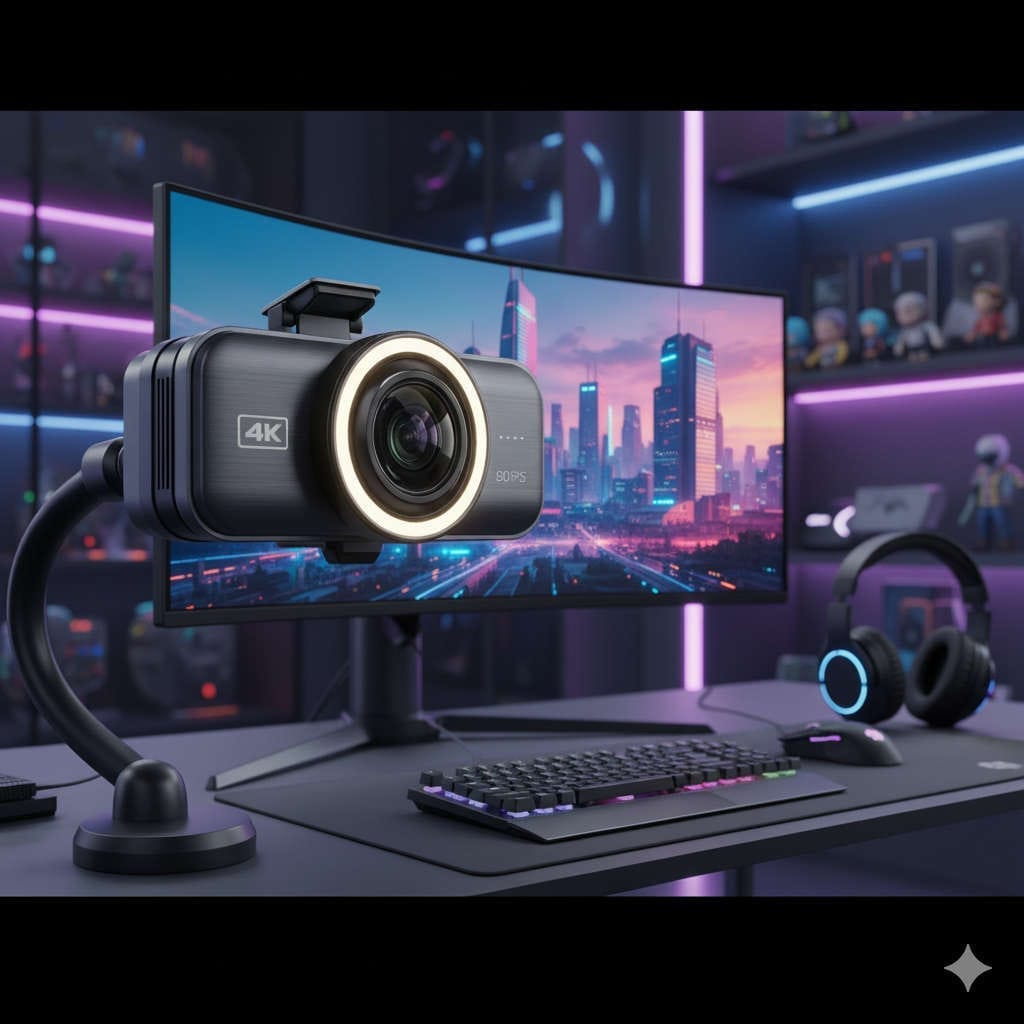
Remote work, virtual meetings, online learning, telehealth, and content creation have completely reshaped how we use computers. Almost every professional and student now spends part of the week in front of a camera. But while laptops come with cameras baked in, most desktop setups require an external webcam — and those dangling peripherals are often clunky, underwhelming, and add more cable clutter than anyone really wants.
That’s where monitors with integrated webcams shine. They combine crisp displays with video conferencing essentials, giving you a cleaner desk setup and reducing the frustration of juggling multiple accessories. In many cases, these webcams are not just “tacked on” extras; they’re carefully designed to match or even outperform mid-range standalone webcams.
In this comprehensive guide, we’ll dive deep into everything you need to know about choosing a monitor with a built-in camera. We’ll cover:
- Why these all-in-one displays are worth considering
- Key webcam features that actually matter
- The best monitors with integrated cameras you can buy in 2025, broken down by use case
- Practical buying tips to make sure you don’t waste money
- Setup and lighting tricks to get the most out of your webcam
By the end, you’ll know exactly which model fits your needs — whether you’re a designer, a manager who lives in Teams meetings, a student who wants a tidy dorm desk, or a hybrid worker who wants one monitor that does it all.
Why Buy a Monitor with a Built-In Webcam?
Let’s start with the obvious question: why not just stick with an external webcam?
1. Cleaner setup.
No dangling cords, no extra clip-on hardware, no USB ports tied up unnecessarily. Your monitor becomes the single hub for video calls, making your desk look sleeker and easier to keep organized.
2. Seamless integration.
Manufacturers who build webcams into monitors often fine-tune the experience. You’ll find extras like physical privacy shutters, better microphones, and support for things like Windows Hello facial recognition or Apple’s Center Stage auto-framing.
3. Docking convenience.
Many of today’s webcam-equipped monitors also serve as docking stations. With one USB-C or Thunderbolt cable, you can connect your laptop, charge it, use the built-in camera, and access any peripherals you’ve plugged into the monitor. That’s a game-changer for people who bounce between laptops and desks.
4. Better ergonomics.
Laptop webcams are stuck below eye level, which leads to the dreaded “up-the-nose” angle. Monitors with webcams usually sit higher and can be adjusted for a natural, eye-level shot.
Of course, there are trade-offs. Integrated webcams don’t give you the flexibility of a tripod-mounted external camera. If you’re a professional streamer or YouTuber, you’ll probably still want dedicated gear. But for most people, the combination of a solid display and a very capable built-in camera is exactly what’s needed.
What Webcam Features Actually Matter?
When you’re comparing monitors, you’ll see a blur of technical jargon. Here’s what actually makes a difference in your daily calls or recordings:
1. Resolution and Frame Rate
The current sweet spot is 1080p at 30 frames per second. It’s sharp enough for professional video calls and smooth enough for natural motion. Some higher-end monitors feature 2K or even 4K cameras, which allow for sharper detail or digital cropping without losing quality. While 4K is nice, it’s not necessary for everyday meetings.
2. Sensor Quality
Resolution is only part of the story. The sensor itself determines how well the webcam handles low-light environments, motion, and tricky lighting. A good sensor produces less grain, more accurate colors, and keeps your face evenly lit even if you’re sitting near a window.
3. Autofocus and Auto-Framing
Autofocus makes sure you don’t look blurry if you lean forward or back. Auto-framing goes a step further, digitally adjusting the crop so you stay centered even if you move around. Apple’s “Center Stage” feature is the most famous example, but several PC monitors now offer similar tools.
4. Microphone Quality
A webcam is only half the equation — people need to hear you too. Look for monitors with dual microphone arrays or noise-canceling mics. These do a surprisingly good job of reducing background hum and echo, making you sound clearer.
5. Privacy Options
A physical shutter you can slide over the camera is the simplest way to guarantee privacy. Some monitors use pop-up webcams that physically retract when not in use. If you’re concerned about security, prioritize models with mechanical covers.
6. Windows Hello or Face Recognition
If you’re on Windows, an IR-equipped webcam allows for password-free login with Windows Hello. It’s one of those small conveniences that you’ll appreciate every single day.
7. Connectivity and Docking
Many webcam-equipped monitors are designed as docking hubs. Look for USB-C or Thunderbolt ports with power delivery (typically between 65W and 96W). That way, one cable charges your laptop, runs your external monitor, and connects the webcam and other peripherals.
The Best Monitors with Built-In Webcams in 2025
After sorting through dozens of options, I’ve narrowed the field to the seven best choices this year. Each shines in a different area, so you can pick based on your own priorities.
1. Apple Studio Display
Best for: Mac users and creative professionals who want the ultimate integration
Apple’s Studio Display is a dream for anyone in the Apple ecosystem. The 27-inch 5K Retina panel is stunning for photo, video, and design work, offering incredible brightness and color accuracy. But what makes it stand out in this list is its 12-megapixel ultra-wide webcam paired with Apple’s Center Stage technology.
This camera tracks your movements and keeps you centered in the frame automatically, which is great if you shift during meetings or like to stand up while presenting. On top of that, the monitor includes a studio-quality three-mic array and a six-speaker sound system with spatial audio. For many users, this combination makes the Studio Display a complete video-conferencing and content-creation hub without needing any extra accessories.
Why it’s great:
- Stunning 5K display with wide color support
- 12MP webcam with Center Stage auto-framing
- Studio-quality microphones and speakers
- One-cable Thunderbolt connectivity
Drawbacks:
- Expensive
- Works best within the Apple ecosystem
2. Dell Pro 27 Video Conferencing Monitor (P2724DEB)
Best for: Professionals who spend most of their day in video calls
Dell built this monitor with remote collaboration in mind. Its 2K QHD webcam uses a high-quality sensor designed for low-light performance, so you’ll look clear even in dim rooms. The camera is paired with dual echo-cancelling microphones and integrated speakers, making it an all-in-one conferencing solution.
One clever touch: the monitor includes quick-access meeting controls, so you can mute or toggle the camera without fumbling with keyboard shortcuts. It’s also certified for Microsoft Teams, which guarantees smooth performance with one of the most common workplace platforms.
Why it’s great:
- 2K camera with strong low-light capture
- Certified for Teams with dedicated conferencing controls
- Built-in mic array and speakers
- USB-C docking with power delivery
Drawbacks:
- Display is optimized for productivity, not creative color work
- Webcam is fixed — no physical adjustment beyond monitor tilt
3. LG UltraFine 5K (27MD5KL-B)
Best for: Mac users who want a 5K monitor with a built-in webcam but prefer LG over Apple
LG’s UltraFine 5K has been a longtime favorite among Mac users who want Retina-class clarity without Apple’s premium price tag. It delivers a crisp 5120×2880 resolution, wide color gamut, and excellent brightness, making it fantastic for creative work.
The monitor also includes a built-in camera, microphone, and stereo speakers. Combined with its Thunderbolt 3 connectivity and 94W power delivery, it doubles as a docking hub for your MacBook. While the camera isn’t as advanced as Apple’s Studio Display, it’s perfectly suitable for meetings and casual video recording.
Why it’s great:
- 5K panel with outstanding sharpness
- Works seamlessly with macOS
- Thunderbolt 3 with high-watt charging
- Integrated webcam and speakers
Drawbacks:
- Design is plain compared to Apple
- Webcam is decent but not cutting-edge
4. HP E24d G4 Docking Monitor
Best for: Windows users who want Windows Hello face recognition
HP’s E-series monitors are cleverly designed as docking hubs. The E24d G4 includes a built-in webcam that supports Windows Hello for secure, password-free logins. That means you can sit down, and your computer will unlock instantly as it recognizes your face.
The monitor also supports USB-C docking, charging your laptop while connecting the webcam and any peripherals attached to the screen. For remote workers who want both simplicity and security, it’s a fantastic choice.
Why it’s great:
- Webcam with Windows Hello support
- Strong docking features
- Clean, professional design
- Affordable compared to high-end creative displays
Drawbacks:
- 1080p resolution display (fine for office work, not great for design)
- Webcam quality is functional, not exceptional
5. Samsung Smart Monitor M8
Best for: Hybrid use as both a monitor and smart TV
Samsung’s M8 series blurs the line between monitor and smart TV. It comes with built-in streaming apps, so you can watch Netflix or YouTube without even turning on your computer. But what sets it apart for this list is its slim integrated webcam, which you can use for video calls directly or through connected devices.
The design is ultra-slim and stylish, available in several colors that blend into home offices or living rooms. It’s a great pick for someone who wants one screen that can double as entertainment and a work tool.
Why it’s great:
- Slim, modern design
- Integrated SlimFit camera for video calls
- Smart TV apps included
- USB-C connectivity
Drawbacks:
- Webcam is good for casual calls, but not high-end quality
- Color accuracy is geared more for entertainment than professional design
6. Lenovo ThinkVision T27hv-20
Best for: Enterprise and business deployments
Lenovo’s ThinkVision line includes monitors with conferencing features built in. The T27hv-20, for example, comes with a pop-up webcam, noise-cancelling microphones, and enterprise-friendly security options. IT departments love these because they’re consistent, easy to deploy across offices, and reliable for standard video-conferencing setups.
The webcam pops up only when in use, which adds a layer of privacy without needing extra covers. The monitor also includes eye-comfort features like low blue-light modes, making it comfortable for long workdays.
Why it’s great:
- Pop-up webcam with microphones
- Business-ready design with security features
- Easy to deploy across teams
- Comfortable ergonomics
Drawbacks:
- Webcam quality is average
- Designed for office productivity, not multimedia flair
7. ViewSonic VG2757V-2K
Best for: Budget-friendly video conferencing
ViewSonic’s conferencing monitors are an underrated gem. The VG2757V-2K is a 27-inch QHD monitor with an integrated 1080p webcam, microphone, and speakers. It doesn’t chase high-end creative specs, but it nails the basics at a much lower price point than some of the premium options.
It’s particularly attractive for students, small business owners, or anyone who wants a tidy video-ready setup without spending big.
Why it’s great:
- Affordable
- 1080p webcam with built-in mic and speakers
- QHD resolution for crisp office work
- Good ergonomics and adjustability
Drawbacks:
- Webcam is serviceable, not studio-quality
- Limited advanced features
How to Choose the Right One for You
The key to choosing the best monitor isn’t just chasing specs — it’s matching the product to how you’ll actually use it.
- Creative professionals (photo/video/design) → Apple Studio Display or LG UltraFine 5K. Both provide top-tier resolution and color accuracy with integrated webcams.
- Meeting-heavy professionals → Dell Pro 27 Video Conferencing Monitor. Built for endless Zoom or Teams calls.
- Windows laptop users → HP E24d G4 for face recognition and docking convenience.
- Hybrid workers who also want a TV-like experience → Samsung Smart Monitor M8.
- Enterprise IT departments → Lenovo ThinkVision T27hv-20 for scalable, secure deployments.
- Budget users → ViewSonic VG2757V-2K for solid performance at a friendly price.
Tips for Getting the Best Video Out of Your Monitor’s Webcam
Even the best camera can look bad if your setup isn’t right. Here are quick, practical tips to level up your appearance in calls:
- Raise the monitor so the camera is at eye level or slightly above.
- Light yourself from the front with soft, even lighting. A desk lamp with a diffuser works wonders. Avoid sitting with a bright window behind you.
- Clean the lens regularly — it’s shocking how many webcams look bad just because of fingerprints or dust.
- Check your framing before important calls. Make sure your head and shoulders fill the frame without too much empty space above you.
- Use the monitor’s built-in mics for convenience, but switch to a dedicated microphone if audio clarity is critical for your job.
- Test privacy features like pop-up cameras or shutters so you know how to quickly disable the camera when needed.
Final Thoughts
The age of the “afterthought webcam” is over. Today’s monitors with built-in cameras are polished, practical, and in many cases, good enough to replace a mid-range standalone webcam altogether. They save space, reduce clutter, and streamline your setup — and when paired with features like Windows Hello, auto-framing, or integrated mic arrays, they make virtual communication far more seamless.
To recap:
- Best overall for Mac: Apple Studio Display
- Best for constant meetings: Dell Pro 27 Conferencing Monitor
- Best value 5K alternative: LG UltraFine 5K
- Best for Windows Hello: HP E24d G4
- Best hybrid TV/monitor: Samsung M8
- Best enterprise choice: Lenovo ThinkVision T27hv-20
- Best budget pick: ViewSonic VG2757V-2K
Choose based on how you spend your day, and you’ll end up with a cleaner desk, better video quality, and a monitor that pulls double duty as your meeting hub.
You might also like,
- Best Monitors for Home & Office 2025
- The Best Monitors for Photo Editing in 2025: A Complete Guide
- Best Laptops for A-Level Students in 2025: Complete Buying Guide
- Apple Watch Series 10 Review: Design, Features, Health Tools & More
- Top 5 Monitors with Built-In Speakers for Work, Play & Streaming (2025 Guide)