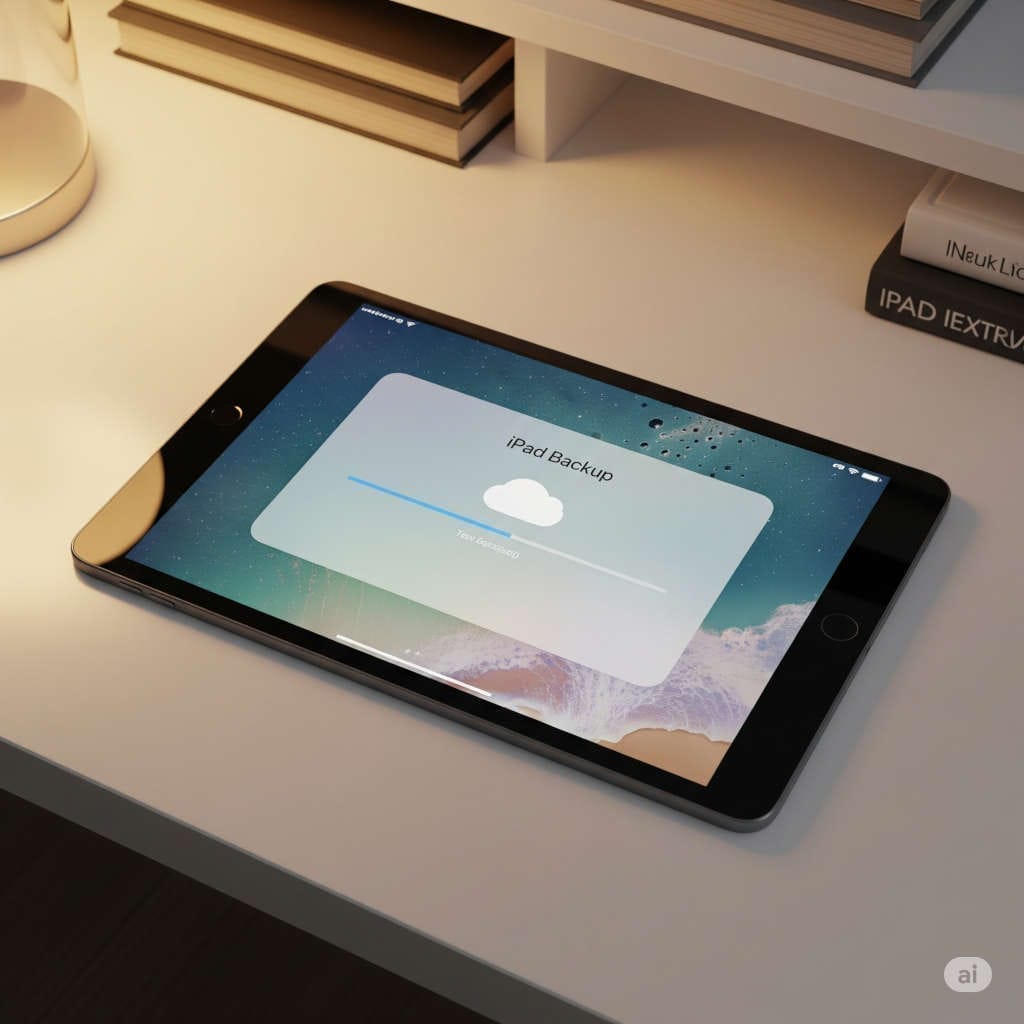
Your iPad is more than a piece of tech—it’s your creative studio, your digital office, your photo album, and your entertainment hub. From precious family photos to important work documents, it likely stores things you can’t afford to lose. Yet, many users overlook one crucial step: backing up their iPad.
Accidents happen. Devices break, get lost, or malfunction. iOS updates sometimes fail, and data can vanish in seconds. That’s why learning how to back up your iPad properly—before it’s too late—is essential.
In this complete, beginner-friendly guide, we’ll walk you through everything you need to know:
- Why iPad backups are crucial
- The best backup methods (iCloud, computer, and external drives)
- Step-by-step instructions for each
- How to verify and restore backups
- Common mistakes to avoid
- Expert tips and recommended tools for extra safety
Let’s dive in.
Why You Should Back Up Your iPad Now
If you’ve never experienced data loss, it’s easy to underestimate how devastating it can be. Imagine losing years of photos, downloaded files, or app data. Backing up ensures you have a safety net—no matter what happens.
Here are the top reasons why it matters:
1. Protection Against Damage or Loss
iPads are portable, which means they’re also more vulnerable. A simple drop, water spill, or theft can instantly wipe out your data. A recent study found that over 30% of tablet users have experienced unexpected data loss due to hardware issues. Backups are your only true protection.
2. Smooth Upgrades and Replacements
When you buy a new iPad, a backup makes the transition effortless. You can restore your previous setup—apps, preferences, notes, and photos—in minutes, without missing a beat.
3. Safeguard Memories and Creativity
For artists, students, and professionals, iPads often hold sketches, projects, research, and recordings. Losing that work could be devastating. Regular backups mean your creativity is always protected.
4. It’s Quick and Automatic
With Apple’s built-in options, you don’t need to be a tech genius. Once you set it up, your iPad can back up automatically whenever it’s charging and connected to Wi-Fi.
Understanding iPad Backup Options
Apple gives you multiple ways to back up your iPad. Each has its pros and cons, and the best method depends on your storage needs and preferences.
Option 1: iCloud Backup
What it is:
iCloud Backup automatically saves your iPad’s most important data to Apple’s secure cloud servers over Wi-Fi. It’s wireless, convenient, and happens in the background.
What it backs up:
- App data and settings
- iMessages and text messages
- Photos and videos (if iCloud Photos is disabled)
- Device configurations and preferences
- Home screen layout and app organization
- Purchase history and documents stored locally
Pros:
- Fully automatic once enabled
- Accessible from anywhere
- Doesn’t require a computer
Cons:
- Limited free storage (only 5GB)
- Relies on internet connection
- Large backups may require a paid iCloud+ plan
Recommended for:
Casual users who want a simple, hands-off backup solution.
Option 2: Backup to a Computer (Mac or PC)
What it is:
Backing up your iPad to a Mac or Windows PC creates a complete copy of your device on your local drive. This includes app data, settings, and files.
Pros:
- No internet required
- Can store multiple backups
- You control your data location
- Option to encrypt for added security
Cons:
- Requires manual connection and setup
- Needs sufficient disk space on your computer
Recommended for:
Users with large data volumes or those who prefer offline control.
Option 3: Backup to External Drives or Third-Party Cloud Storage
For extra protection, you can create secondary backups by saving exported files, photos, or videos to an external SSD or a service like Google Drive, Dropbox, or OneDrive.
Pros:
- Extra redundancy
- Easy access across devices
- Can store specific folders instead of entire system backups
Cons:
- Manual management
- Not as seamless as Apple’s built-in options
Recommended for:
Professionals, photographers, or creators who work with large files and need multiple copies.
Step-by-Step: How to Back Up Your iPad
Let’s go through each method in detail so you can pick the one that works best for you.
A. How to Back Up iPad Using iCloud
- Connect to Wi-Fi.
Make sure your iPad is online and plugged into power. - Go to Settings.
Tap your name at the top → select iCloud → choose iCloud Backup. - Enable iCloud Backup.
Toggle on “Back Up This iPad.” - Start a Manual Backup.
Tap Back Up Now and wait for it to complete. The time will depend on your internet speed and backup size. - Verify the Backup.
After completion, you’ll see the date and time of the last successful backup under the same menu.
Pro Tip:
Keep your iPad plugged in overnight with Wi-Fi on—backups will happen automatically while you sleep.
B. How to Back Up iPad to Mac
- Connect your iPad to your Mac using a USB-C or Lightning cable.
- Open Finder and locate your iPad in the sidebar.
- Under the General tab, select Back up all of the data on your iPad to this Mac.
- Encrypt the backup if you want passwords and Health data included.
- Click Back Up Now.
- Wait for the process to finish, then check Manage Backups to confirm it’s saved.
C. How to Back Up iPad to a Windows PC
- Install and open iTunes (if not already).
- Connect your iPad with a cable.
- Click the Device icon in the top-left corner.
- Under Backups, select This computer.
- (Optional) Enable Encrypt local backup for full data coverage.
- Hit Back Up Now and let it finish.
Pro Tip:
Store your iTunes or Finder backup on an external hard drive for added redundancy.
D. Export Important Files to an External Drive
If you mainly care about photos, videos, and large design files, connect an external SSD (like the Samsung T7 Portable SSD or SanDisk Extreme Portable SSD).
Then use the Files app on your iPad to drag and drop content manually.
Verifying That Your Backup Worked
Creating a backup is only half the job—making sure it actually works is the other.
Here’s how to confirm your iPad backup is valid:
- For iCloud:
- Go to Settings → Apple ID → iCloud → iCloud Backup.
- Check the “Last Successful Backup” timestamp.
- For Mac or PC:
- On Mac: Finder → Manage Backups → select your device and date.
- On Windows: iTunes → Preferences → Devices → check list of backups.
- Optional Restore Test:
- If you have an old iPad or a spare device, try restoring from backup to confirm it loads correctly.
How to Restore an iPad from Backup
When disaster strikes or you get a new iPad, restoring your data is straightforward.
Restore from iCloud Backup
- Turn on your new or erased iPad.
- On the Apps & Data screen, tap Restore from iCloud Backup.
- Sign in with your Apple ID.
- Choose your latest backup.
- Stay connected to Wi-Fi and power until restore completes.
Restore from Computer Backup
- Connect your iPad to your Mac or PC.
- Open Finder or iTunes.
- Select Restore Backup.
- Choose your preferred backup file and click Restore.
- Keep your device connected until it reboots and data sync finishes.
What’s Included in an iPad Backup
Knowing what’s covered (and what’s not) helps you avoid unpleasant surprises later.
Included:
- App data and settings
- Messages (SMS, iMessage, MMS)
- Device preferences and wallpaper
- Photos and videos (if iCloud Photos is off)
- Call history
- Home screen and layout
- Health and Keychain data (if encrypted)
Not Included:
- Content already stored in iCloud (Contacts, Notes, Calendars)
- Apple Pay information
- Touch ID or Face ID settings
- iTunes/App Store purchases (you can re-download them)
- Files saved externally or in other cloud apps (like Google Drive)
Tip: If you rely on cloud apps, make sure they’re syncing properly before you erase or replace your iPad.
Troubleshooting Common iPad Backup Problems
Even the best systems can fail sometimes. Here’s how to fix common backup issues quickly.
1. “Not Enough iCloud Storage”
- Delete old device backups or unused data in Settings → iCloud → Manage Storage.
- Consider upgrading to an iCloud+ plan (50GB, 200GB, or 2TB).
Pro Tip: Sign up for Apple iCloud+ 200GB Plan — perfect for users with large photo libraries and frequent backups.
2. “Backup Taking Too Long”
- Ensure your Wi-Fi connection is stable.
- Plug in your iPad and let it back up overnight.
- Delete large apps or videos you no longer need before backing up.
3. “Cannot Complete Backup”
- Restart your iPad and retry.
- Sign out and back into iCloud.
- If using a computer, update Finder/iTunes and try a different cable or port.
4. “Backup Corrupted or Won’t Restore”
- Always keep your software updated.
- If an encrypted backup fails, make sure you have the correct password.
- Try restoring from an older backup if available.
The Smart Way: Combine Multiple Backup Methods
The golden rule of data protection is redundancy. Never rely on just one backup.
Here’s an ideal system:
- Automatic iCloud backup daily (convenient and remote).
- Weekly computer backup for a full local copy.
- Monthly external drive copy for ultimate security.
This “3-2-1” rule (three copies of data, on two different media, one stored off-site) is the same strategy used by professional photographers and businesses worldwide.
Best External Drives and Tools for iPad Backup
If you work with high-resolution videos, Procreate art files, or raw photos, a portable SSD can be a lifesaver. Here are some top-rated options:
- SanDisk Extreme Portable SSD (1TB or 2TB)
- Rugged, water-resistant, and lightning-fast.
- Great for creators and travelers.
- Samsung T7 Portable SSD
- Compact and secure with AES 256-bit encryption.
- Ideal for professionals needing extra safety.
- LaCie Rugged USB-C Drive
- Durable and designed for field use.
- Compatible with both iPads (via USB-C) and computers.
Pro Tip: Always safely eject drives before disconnecting and keep one stored separately (like in a safe or another location).
Best Practices for a Foolproof Backup Routine
Once you’ve set up your backups, maintain them with these simple but powerful habits:
1. Back Up Regularly
Make it a habit—set a weekly reminder or let iCloud handle it automatically.
2. Encrypt Your Backups
If you’re backing up locally, encryption keeps passwords and sensitive data safe.
3. Keep Devices Updated
Newer iPadOS versions fix bugs that might interfere with backups or restores.
4. Check Backup Success Dates
Review your last backup date weekly to ensure it’s up to date.
5. Store External Drives Safely
Keep one copy in a separate physical location—think of it like fire insurance for your data.
6. Clean Up Before Backing Up
Remove unused apps and old files. Smaller backups complete faster and use less space.
7. Archive Before Big Changes
Planning to update iPadOS or trade in your device? Always create a fresh backup first.
Frequently Asked Questions (FAQ)
1. How long does an iPad backup take?
It depends on your data size and internet speed. A first-time iCloud backup might take an hour or more; later backups are faster since only changes are saved.
2. Do I need Wi-Fi for iCloud backup?
Yes. iCloud backups require an active Wi-Fi connection. Cellular data won’t work for full device backups.
3. Can I back up my iPad without iCloud?
Absolutely. You can use a Mac, PC, or external drive to create offline backups.
4. How do I find my old backups?
On iPad: Settings → iCloud → Manage Storage → Backups.
On Mac/PC: Finder or iTunes → Preferences → Devices.
5. Can I back up multiple iPads to one iCloud account?
Yes, each device will have its own backup file within your iCloud account.
Bonus Tip: Protect More Than Just Your iPad
If you use other Apple devices, set them up with similar backup routines.
- Macs → Use Time Machine with an external drive.
- iPhones → Enable iCloud Backup or iTunes/Finder backup.
- Apple Watch → Backed up automatically when paired with your iPhone.
The goal is consistency—every device should have a clear backup strategy.
Wrapping Up: Don’t Wait Until It’s Too Late
Losing your iPad data can feel like losing a part of your digital life. But it doesn’t have to happen to you. Whether you prefer iCloud’s simplicity, your computer’s control, or the reliability of an external SSD, there’s a solution that fits your lifestyle.
Take ten minutes today to set up your backup. Once it’s done, your photos, notes, drawings, and memories will be safe—no matter what the future holds.
Quick Recap: iPad Backup Checklist
- ✅ Enable iCloud Backup
- ✅ Perform a computer backup weekly
- ✅ Encrypt local backups for full data protection
- ✅ Export large files to an external SSD
- ✅ Verify backups regularly
- ✅ Archive before updates or replacements
- ✅ Combine cloud + local + external storage for true peace of mind
Final Word:
Backing up your iPad is one of those small habits that pays off enormously. It takes minutes to set up but can save you from years of regret. Don’t gamble with your digital life—back up your iPad before it’s too late.
You might also like,
- Top 6 Portable Solar Power Banks for Camping & Travel
- How to Fix an iPhone That Won’t Turn On (Complete Guide)
- Best Translucent Slim Magnetic Case for iPhone 16 Pro Max
- Best MagSafe Power Banks for Travel and Airplane Carry-On
- Best Privacy Screen Protector for iPhone 17 & 17 Pro Max in 2025
- How to Turn Off Headphone Notifications on iPhone (Complete Fix Guide)